 Celebrate with up to 80% off
How to change location on Google: A complete guide


Google uses location data across many of its services, but changing your location isn't always straightforward. Different Google products rely on different location settings and signals, so updating one setting may not change your location everywhere.
The right approach depends on what you're trying to change. Some services use your device's location, but others rely on account settings, search preferences, or your IP address.
Why change your location on Google?
Your location can affect what you see and how certain Google features work. Search may show different local results, Maps uses location for directions and nearby places, and Google Play determines available content based on your country or region.
You may need to change your Google location if you've moved, are traveling, or Google is using the wrong information. For Google Play, changing country is usually most relevant after a longer-term move because Google may require you to be in the new country, use a local payment method, and wait before changing it again.
- Search results: Changing your Search region can help Google show results for a different country or region, although your current location and other signals may still affect what you see.
- Maps location: Setting your home or work address helps Maps provide more relevant directions, commute information, and suggestions related to those locations.
- Google Play: Changing your Play country affects app availability, pricing, and other store content, but it comes with restrictions.
Also read: What is geotargeting? How location tracking impacts privacy and security.
How Google detects your location
Google typically combines information from multiple sources to estimate your location or decide which location to use for a particular service. Here’s what can affect that process:
- Device location: Devices can share precise location data using GPS, Wi-Fi, Bluetooth, cell towers, sensors, and other location technologies.
- Network-based location: IP addresses and networks can give Google a general location. This is commonly used when a precise device location isn’t available.
- Location permissions: Browser and app permissions can affect whether Google can access precise location. If access is limited, other available signals may still be used.
- Saved places: Locations saved in Google services, such as Home and Work in Google Maps, can provide additional context.
- Google account activity: Previous activity across Google services, including Search, may be used alongside other signals to estimate your location.
- Search region settings: Google Search lets you choose a region for results, but this doesn't necessarily override every other location signal.
This means there isn’t one universal “Google location” setting. The right fix depends on whether you’re trying to update Search, Maps, Google Play, your device permissions, or your Google Account details. Turning off precise location also doesn’t stop Google from estimating a general area based on your IP address.
Also read: What does Google know about me? How to see, control, and delete your data.
Ways to change your Google location
The sections below explain how to change your location in Google Search, Google Maps, and Google Play.
Changing your Google Search region
Google Search lets you choose a region for your search results. This can influence the content shown in the results, but it doesn't change your device location or location settings across other Google services. Some Search features may also still use your current or detected location.
Use this option if you want Google Search to show more results for a specific country or region. Below is a guide for changing these settings on a desktop device, but steps are similar for mobile:
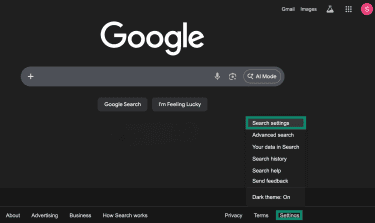
- Open google.com in your browser. Click Settings at the bottom of the page, then select Search settings.
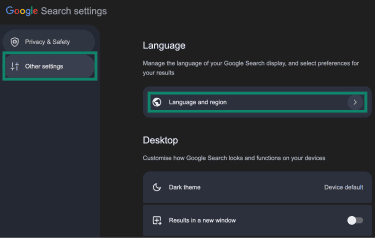
- Click Other settings, then Language and region.
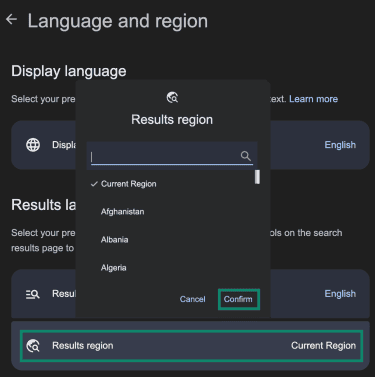
- In the Results region, choose the country or region you want, then click Confirm.
Changing location for a single search
Google doesn't provide a dedicated setting to change the location for an individual search. However, adding a location directly to the query can influence the results Google shows. For example, searching "best restaurants in Istanbul" tells Google to prioritize that location.
If you want results from another country rather than a specific city or place, changing your Search region is usually the simplest option.
Google Maps
Instead of using a region setting, Maps relies mainly on information such as your device's location, location permissions, and saved places. The settings you need to change depend on which information you want Maps to use.
Updating Home and Work addresses
Home and Work locations help Google Maps and other Google services personalize directions, commute information, search results, and other recommendations tied to those places. Here’s how to update them:
- Open Google Maps on your phone or computer while signed in to your Google Account.
- Go to your saved or labeled places. Depending on your device, this may appear as Saved, You, or Labeled.
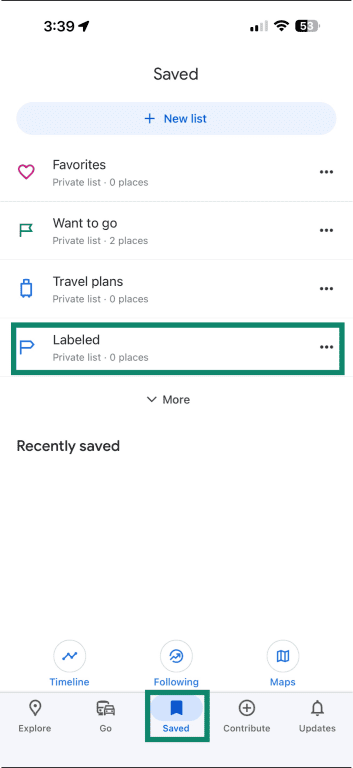
- Select Home or Work, then Choose on map (to manually place a pin) or Choose from Contacts (to use an address already saved for a contact in your Google Account).
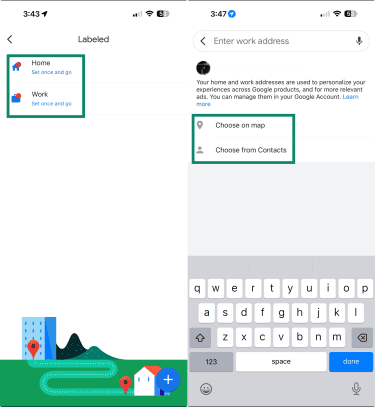
- Confirm the address and save your changes.
Changing Google Maps permissions
Location permissions control whether Google Maps can access your device's precise location. The exact steps may vary depending on your device model and operating system version, so the instructions below are general guidelines.
Note: While disabling location access prevents Google Maps from accessing your device's precise location, Google may still estimate a general location from other signals, such as your IP address.
Step-by-step for iPhone
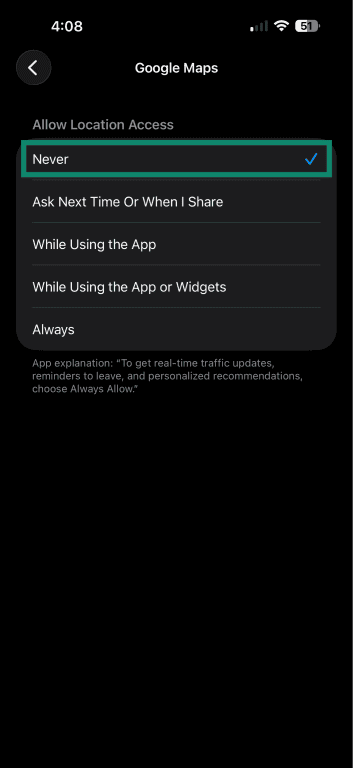
- Open the Settings app and tap Privacy & Security.
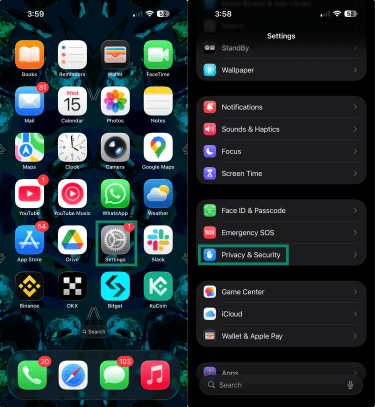
- Select Location Services, then choose Google Maps from the list of apps.
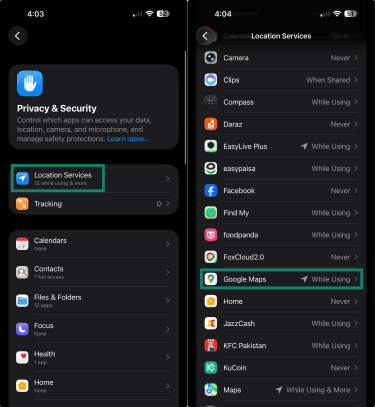
- To stop Google Maps from accessing your location, set location access to Never. To allow access only when the app is open, choose While Using the App instead.
Step-by-step for Android
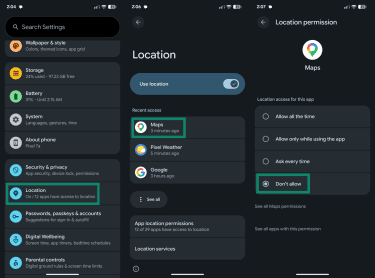
- Open Settings, go to Location, then select Google Maps from the list of apps.
- Under Location permission, select Don't allow to stop Google Maps from using your device location. To allow Maps only while you’re using it, choose Allow only while using the app instead.
Google Play
Google Play uses the country associated with your account to determine which apps, games, subscriptions, and other content are available in the store. If you've moved, you may need to update that country setting before certain content, apps, payment options, or services become available.
What to know before changing your Play location
Before you can switch countries in Google Play, you must:
- Be physically located in the new country.
- Use a payment method from the new country.
- Wait at least 90 days before changing countries again; in some cases, additional restrictions may apply.
- Expect that some apps, subscriptions, and content may become unavailable.
- Keep in mind that current subscriptions may remain active on your old payment profile unless canceled.
- Know that your Google Play balance stays linked to your old Play country and can’t be used in the new country.
- Know that Google Play Points don’t carry over.
- Leave any Google Family group before changing countries; if you’re the family manager, Google says you may need to delete the family group.
Changing your Google Play country
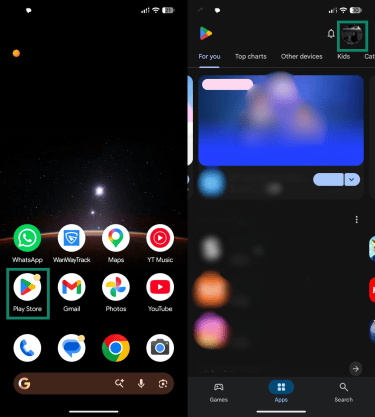
- Open the Google Play Store on your Android device and make sure you’re signed in. Next, tap your profile icon in the top-right corner.
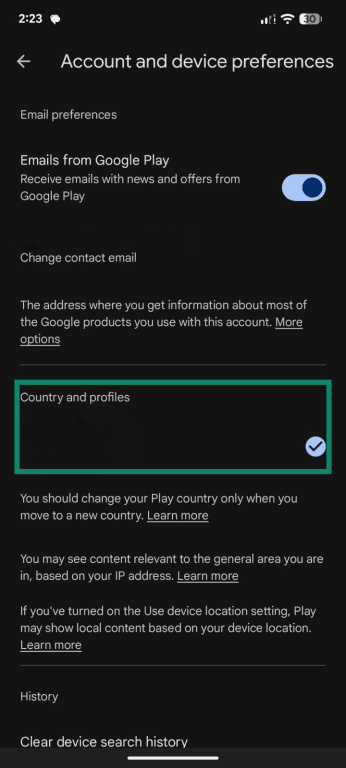
- Go to Settings > General, then Account and device preferences.
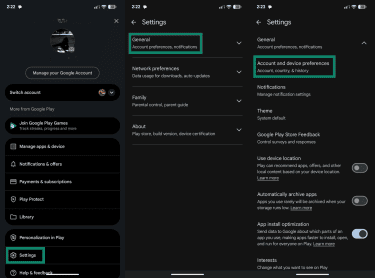
- Under Country and profiles, select the country you want to switch to. If the option doesn’t appear, your account may not be eligible to change countries.
- Follow the prompts to add a payment method from that country and complete the setup.
Note: After changing countries, it may take up to 48 hours for the change to take effect.
Also read: How to change your location on Android.
Other ways to change your Google location
Google's built-in settings are usually the most reliable way to manage saved location preferences across its services. However, you can also influence some of the location information Google uses through your browser or network connection.
These methods may affect location-based results without changing your saved Google settings.
Using a VPN
A virtual private network (VPN) can affect the location Google associates with your internet connection by routing your traffic through a server in another country or region. This may influence some location-based results.
However, a VPN doesn't automatically change other location information Google may use, such as device location, location permissions, or account settings. As a result, Google may still determine a location that differs from the VPN server location.
Read more: How does Google know your location when using a VPN?
A VPN also doesn't automatically change your Google Play country. This has additional requirements, including local payment methods and account eligibility checks.
Step-by-step
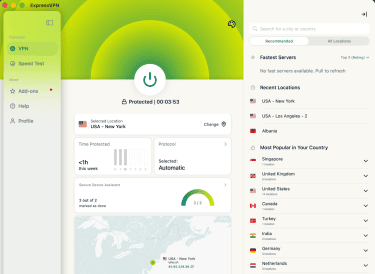
The example below uses macOS. The general idea is similar on Windows and mobile devices, but the exact steps depend on your VPN app and operating system.
- Set up your VPN and click Selected Location or the map icon to choose a server in the country or region you want Google to detect from your internet connection.
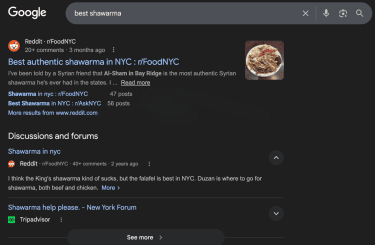
- Open Google in your browser and check whether the results reflect the new location.
Also read: Fix Google Search not working with a VPN.
Using browser tools
Browser location settings control whether websites can access your device's location through the browser.
While the steps vary between browsers, the process is generally similar. The instructions below use Chrome as an example:
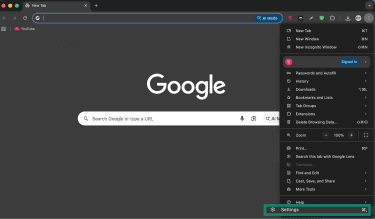
- Click the menu (three vertical dots) in the top right, then click Settings.
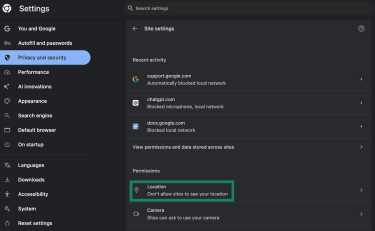
- Go to Privacy and security, then click Site settings.
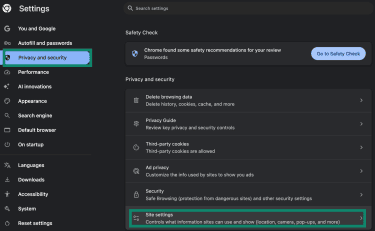
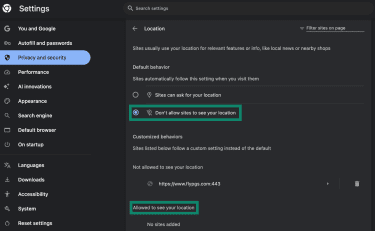
- Under Permissions, click Location.
- Click Don’t allow sites to see your location to block location requests by default. You can also manage exceptions for individual websites under Allowed to see your location.
If you only want to change location access for a specific site, open the website, click the Site controls icon to the left of the address bar, open Site settings, and update the location permission under Location.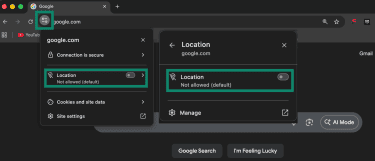
Advanced option: Some browser extensions and search engine optimization (SEO) tools can simulate or preview Google search results from different locations without changing your device location or Google account settings. These tools are commonly used for SEO, research, and testing purposes, but they don’t change your saved Google settings, device location, or Google Play country.
Check whether your location has updated
Before changing more settings, confirm that Google is using the location you expect:
- In Google Search, you can sometimes see the detected location near the bottom of the results page.
- In Google Maps, the blue dot shows your current location when enabled.
Fixing an incorrect Google location
If Google continues to show the wrong region after you've updated the relevant settings, the issue may be due to permissions, cached data, or service-specific restrictions.
Common reasons your location does not update
- Permissions are blocking access, and Google can’t access the location information it needs.
- The available information is incomplete or inaccurate.
- Stored activity or cookies may point to a previous location that Google can still use.
- A product-specific restriction is preventing the change, such as Google Play country requirements.
How to improve location accuracy
- Enable Location services on your device and confirm that Google Maps or your browser has permission to access location data.
- Turn on Wi-Fi and make sure your device has a usable network connection.
- If your location appears to be delayed, check whether Battery Saver or background app limits are restricting location updates.
- Calibrate your device's compass if Google Maps shows an inaccurate orientation.
- Move to an open area or somewhere with a stronger signal to avoid obstructions.
When to clear settings and try again
If you’ve already updated the correct setting but Google still shows the old location, clearing stored site data or cookies may help. This is particularly relevant on desktop browsers, where cookies and cached site data can preserve old information.
The exact process varies between browsers. The example steps below use Chrome:
- Open Settings > Privacy and security > Third-party cookies > See all site data and permissions. Next, locate Google’s stored site data and remove it.
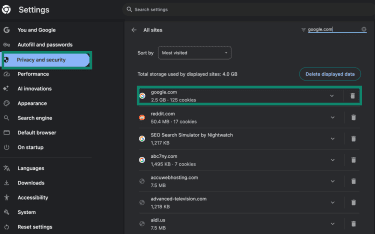
You can also reset location permissions for google.com so the browser requests access again instead of using a previously saved choice.
After making changes, reopen Google Search or Google Maps and check whether the location has updated.
FAQ
Does changing my location affect all Google services?
Can I change my Google location without using a VPN?
How often can I change my Google Play country?
Will changing my location affect my recommendations?
Can Google still detect my real location?
What should I do if Google keeps showing the wrong city?