







Too frustrated to read this page?
Talk to a HumanIf your ExpressVPN app gets stuck on “Reconnecting” or “Disconnecting” after waking your device from sleep, or if the app shows as connected but there is no connection, follow the troubleshooting steps below.
Troubleshooting steps
After each step, check if the issue is fixed. If the issue is fixed, you can skip the rest of the steps.
- Download the latest version of ExpressVPN
- Save your diagnostic file
- Force quit the ExpressVPN app
- Try downgrading the app
- Contact the ExpressVPN Support Team
Preliminary check
Make sure your subscription is still active. An expired subscription can prevent the VPN from reconnecting.
To check, sign into your ExpressVPN account. If your subscription has expired, you will see an expiry message on the welcome screen. Then, you can follow these steps to renew your subscription.
1. Download the latest version of ExpressVPN
Make sure you are using the latest version of the ExpressVPN app,
Set up your ExpressVPN app:
2. Save your diagnostic file
If your issue persists after updating to the latest version of the ExpressVPN app, create and save a diagnostic file:
- In the left sidebar, click Help.
- Under Diagnostic Tools, turn on Enable debug logging.
- Click Send debug report.
- In the ExpressVPN Support Tool window, click Save as .ZIP and choose where to save the file.
Proceed with the troubleshooting steps below. If you cannot resolve your issue with these steps, the log file you just created will later help the ExpressVPN Support team identify and resolve it.
3. Force quit the ExpressVPN app
Force quitting clears the app’s current state and gives it a fresh start. Follow the instructions below for your device.
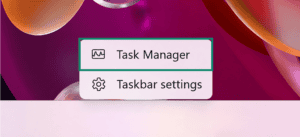
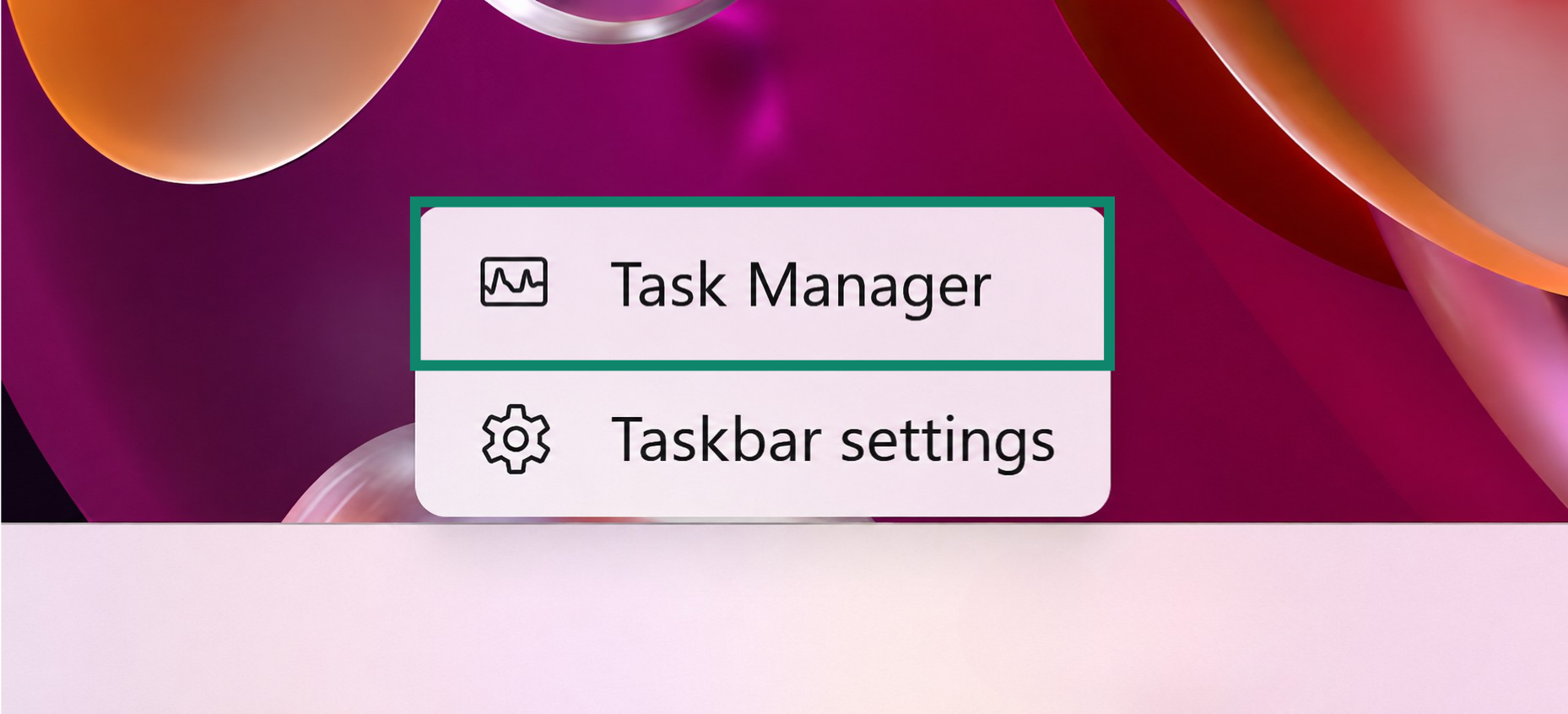
- Right-click the Windows taskbar and select Task Manager.

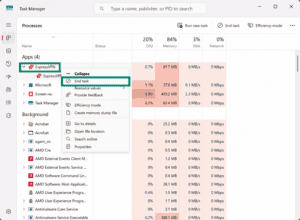
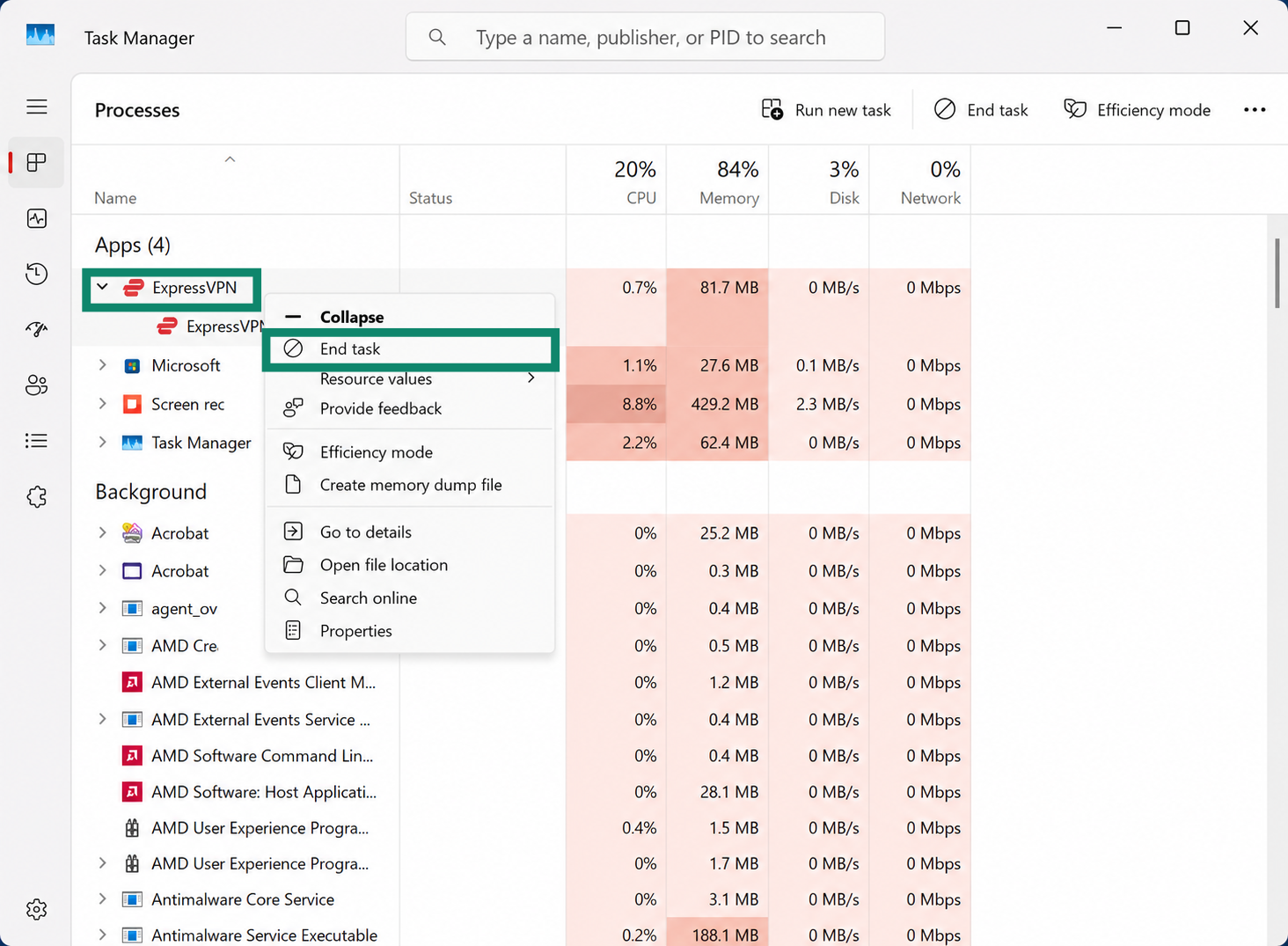
- Right-click ExpressVPN and select End Task.

- Relaunch the ExpressVPN app.
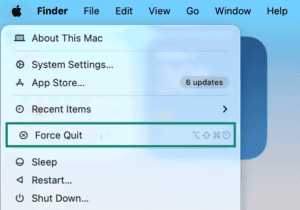
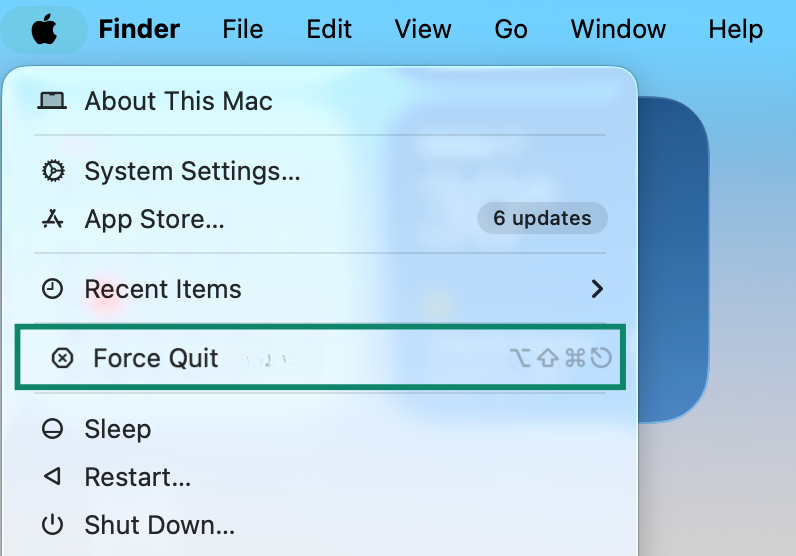
- Click the Apple menu in the upper-left corner and select Force Quit.

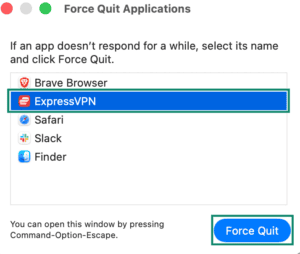
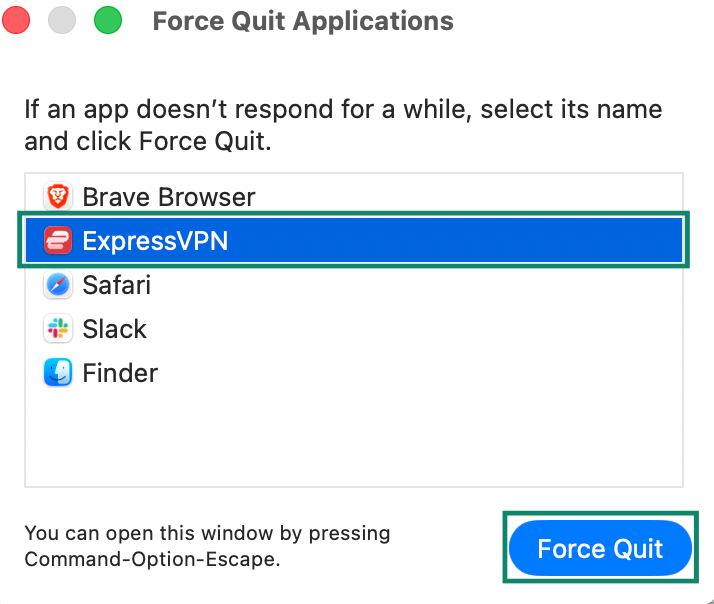
- Select ExpressVPN in the Force Quit Applications window and click Force Quit.

- Relaunch the ExpressVPN app.
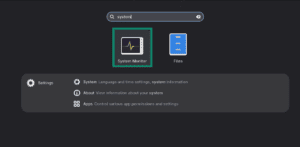
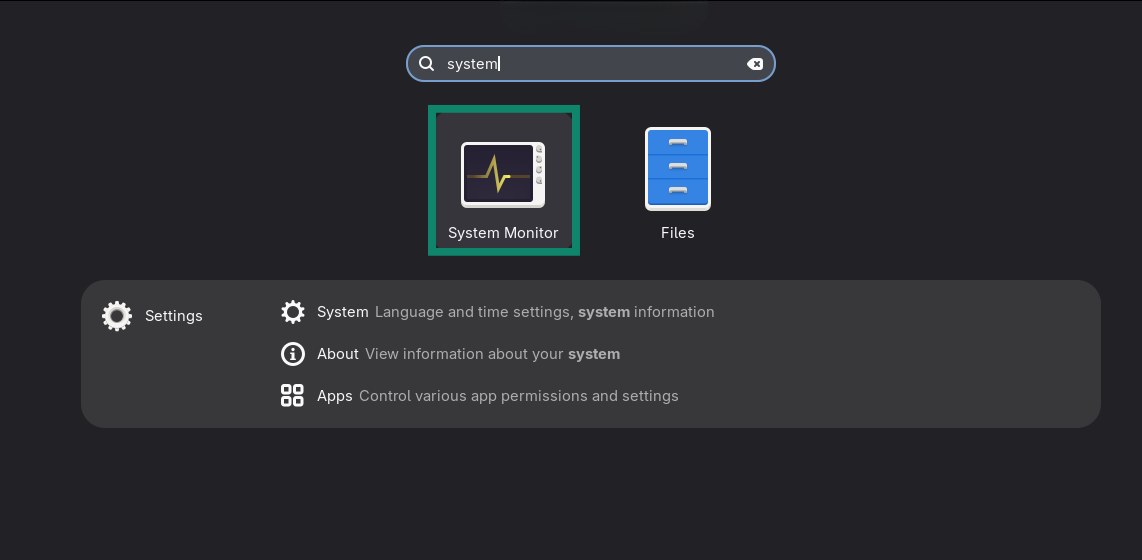
- Open System Monitor.

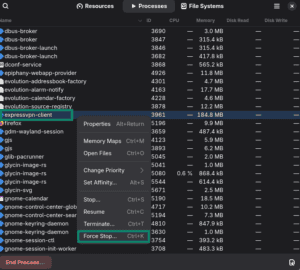
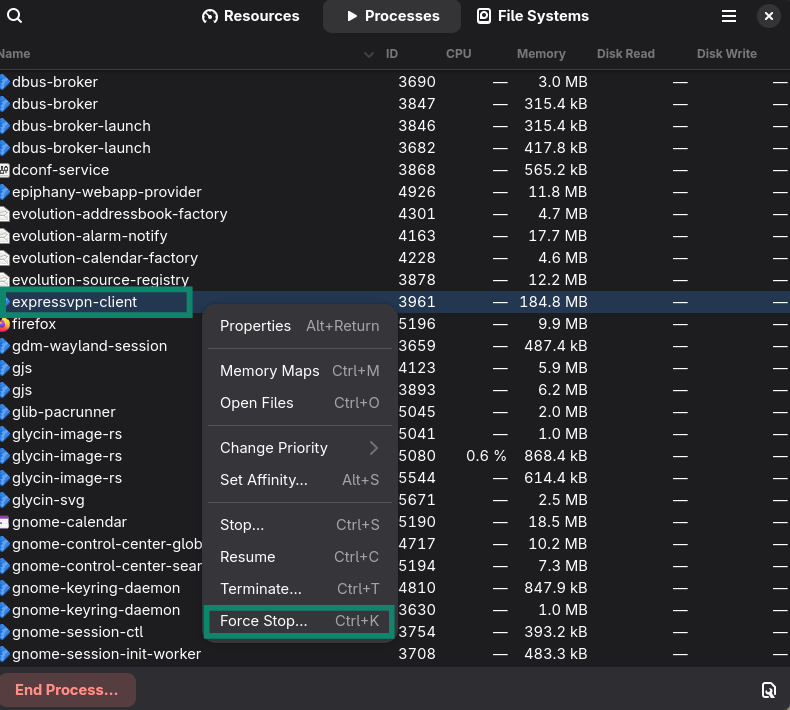
- Select ExpressVPN in the process list and click Force Stop.

- Reopen the ExpressVPN app and connect to a server.
4. Try downgrading the app
If the issue started after a recent update, the latest version may have introduced a bug affecting your device. Contact the ExpressVPN Support Team and ask for a link to the previous stable version of the app for your device.
5. Contact the ExpressVPN Support Team
If none of the above steps resolve the issue, you can send your diagnostic information to the ExpressVPN Support Team to help identify the cause of the issue.
In your browser, you can open live chat, fill out your information, and submit the diagnostic information you saved earlier, which may help us identify the cause of your connection issue.
Alternatively, follow the steps below to open an email ticket that includes your diagnostic files from the macOS, Windows, or Linux app:
- Go to the Help tab.
- Ensure the toggle for Enable debug logging is on.
- Click Send debug report.
- In the window that opens, describe your issue, ensure the toggle for Include technical debug logs is enabled, and click Next.
- Click I Agree, Send Logs.
The Support Team will respond to your registered email address.
Need help? Contact the ExpressVPN Support Team for immediate assistance.