






If you are unable to access the internet after disconnecting from ExpressVPN, follow the troubleshooting steps below. After trying one step, verify if the issue is resolved. If it is not, move on to the next step.
Jump to…
Check Internet Kill Switch settings
If you have enabled Block connections without VPN in your kill switch settings, your device will block internet access whenever ExpressVPN is disconnected.
To check and turn off this setting:
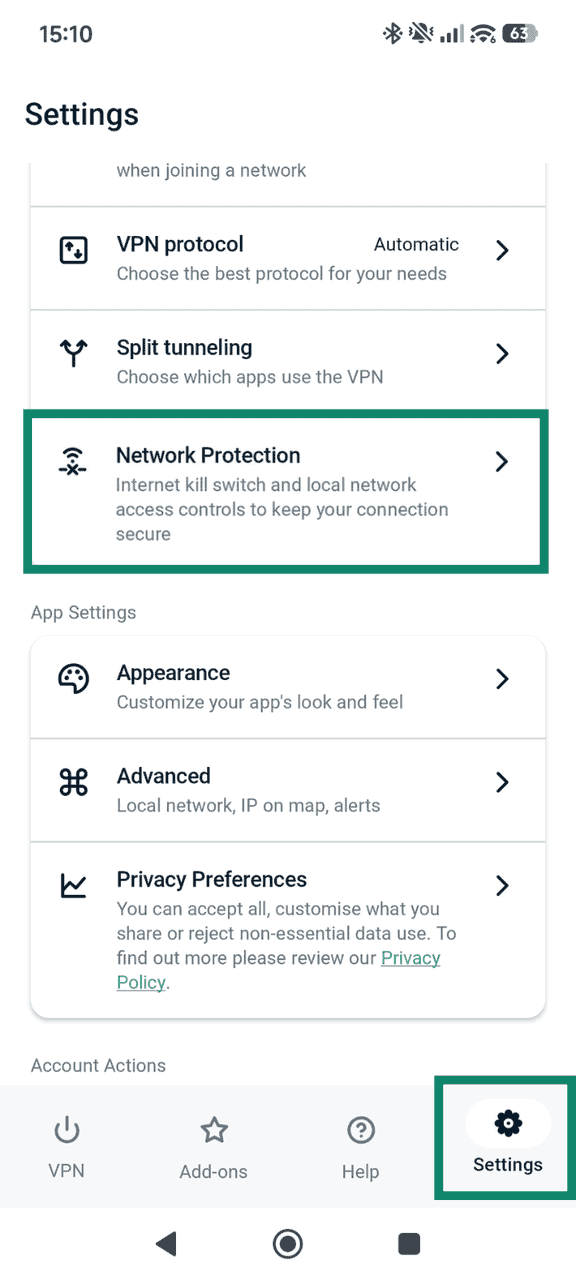
- Go to Settings and tap Network Protection.

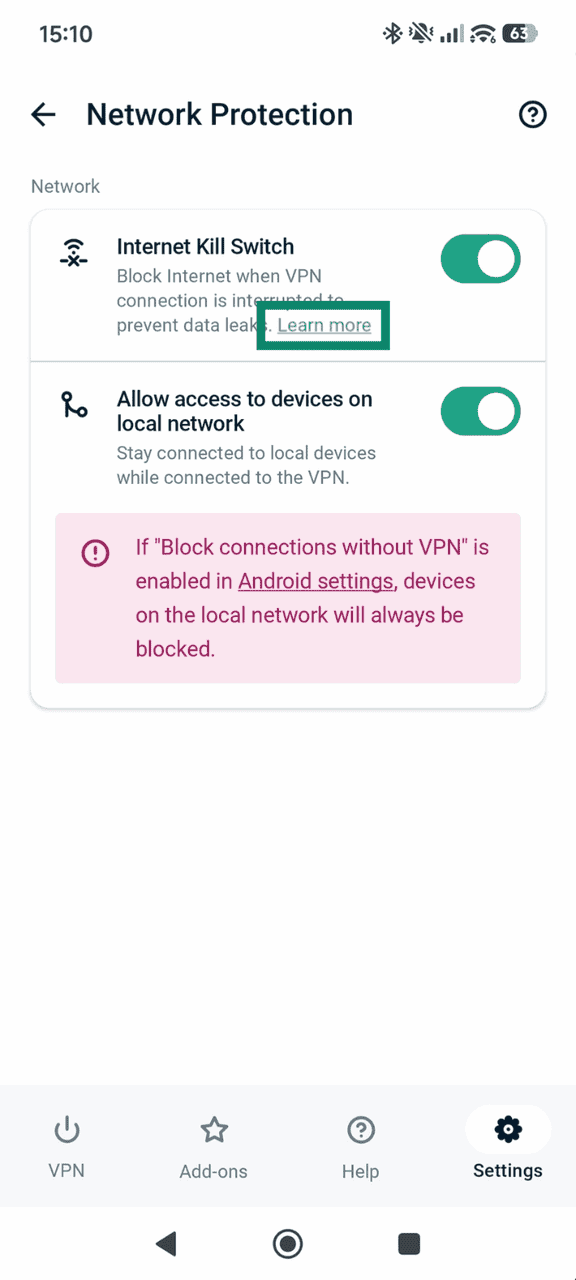
- Tap Learn more under Internet Kill Switch.
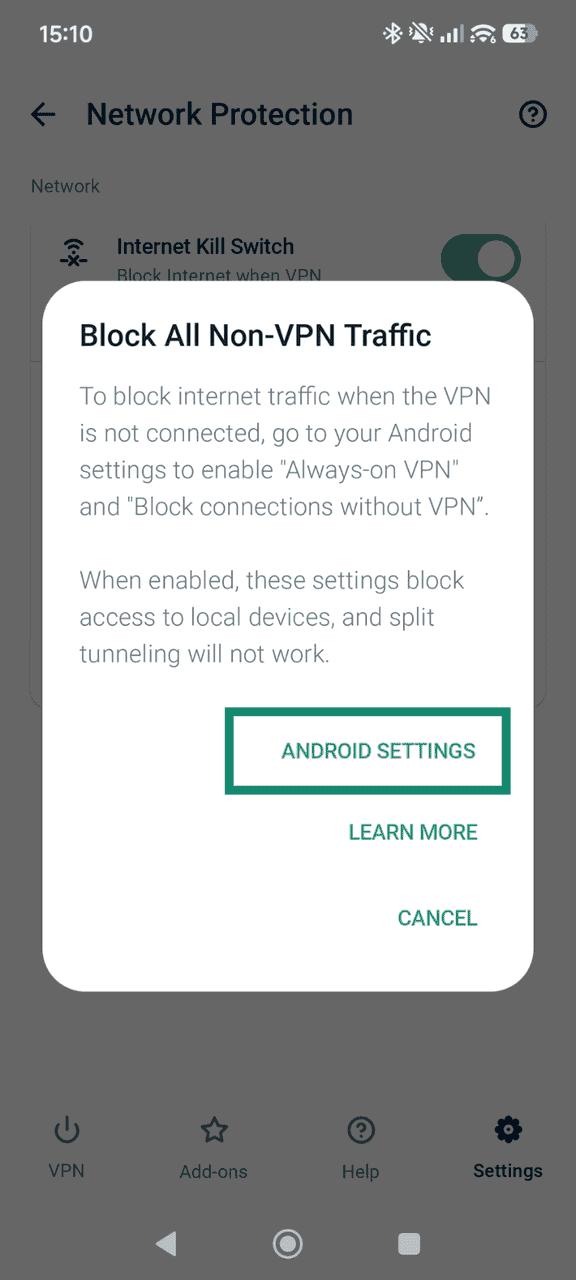
- Tap ANDROID SETTINGS.
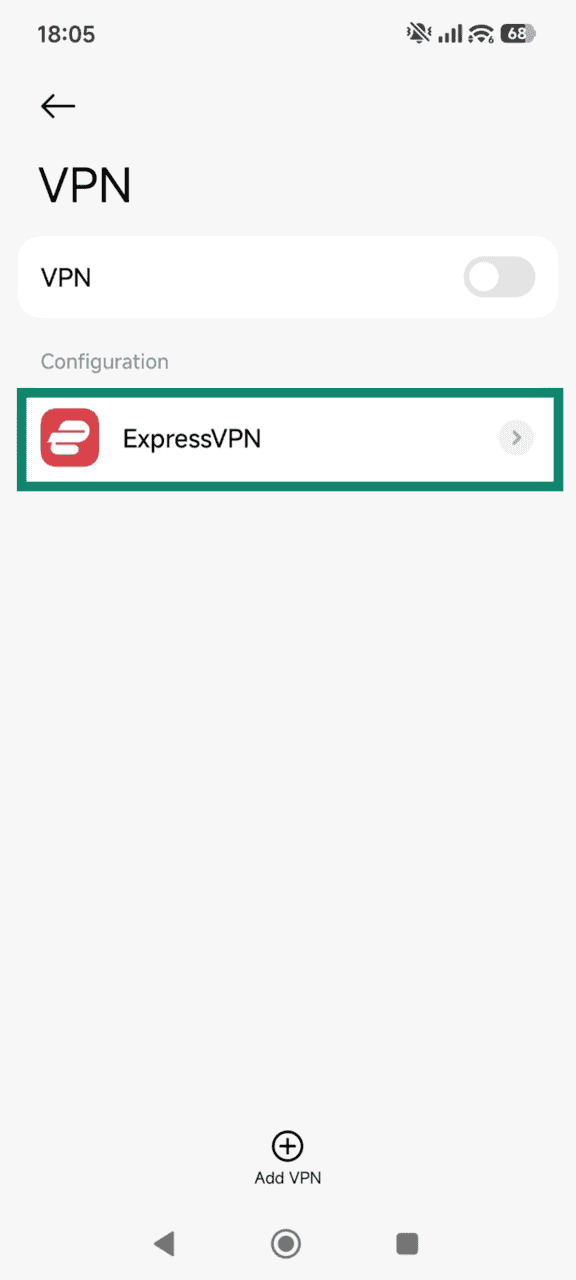
- Tap ExpressVPN.
- You’ll see two toggles: Always-on VPN and Block connections without VPN.
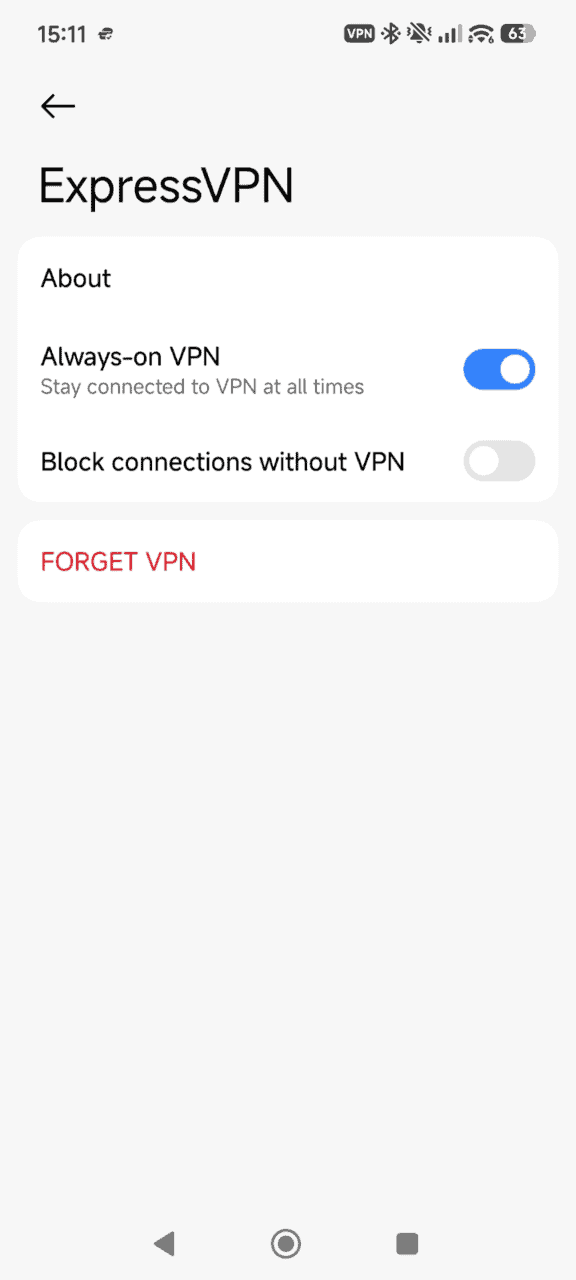
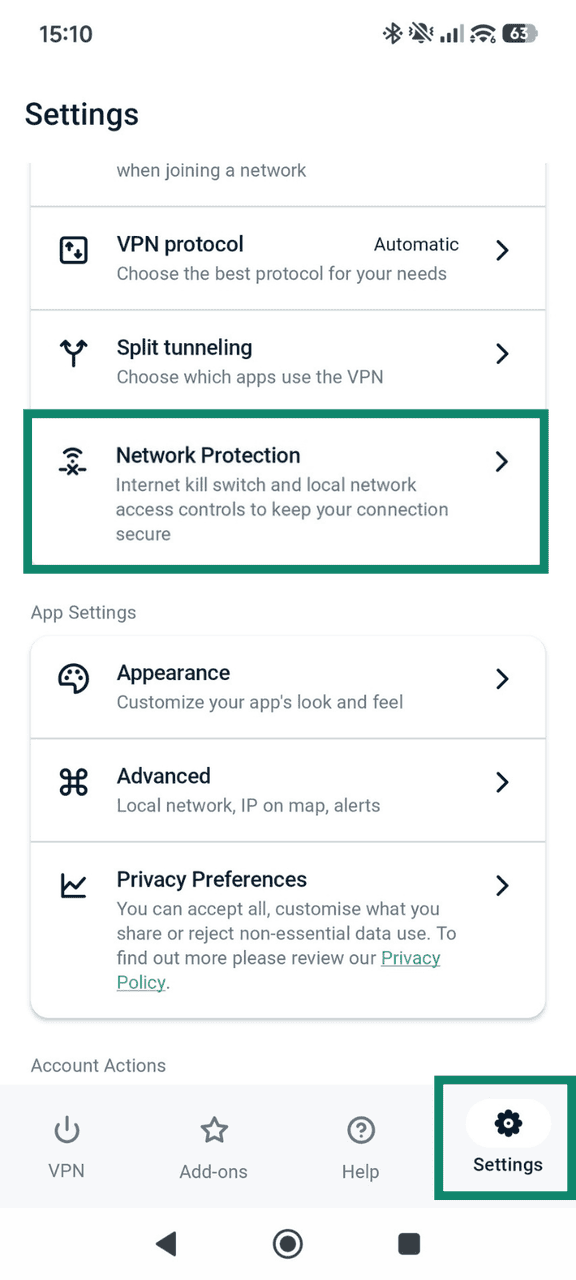
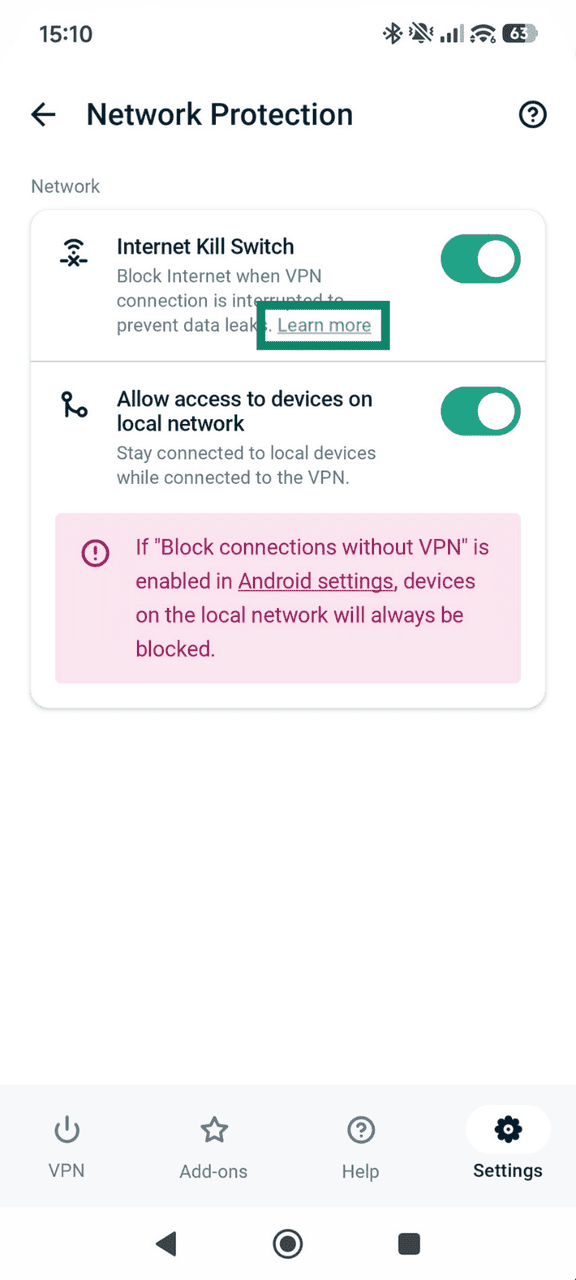
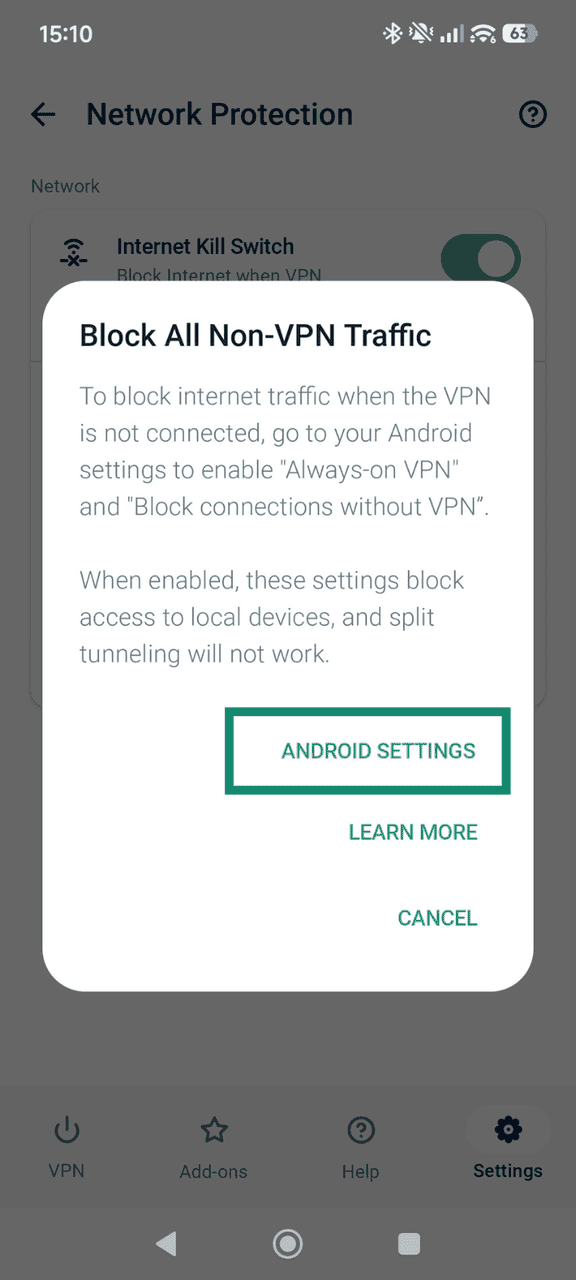
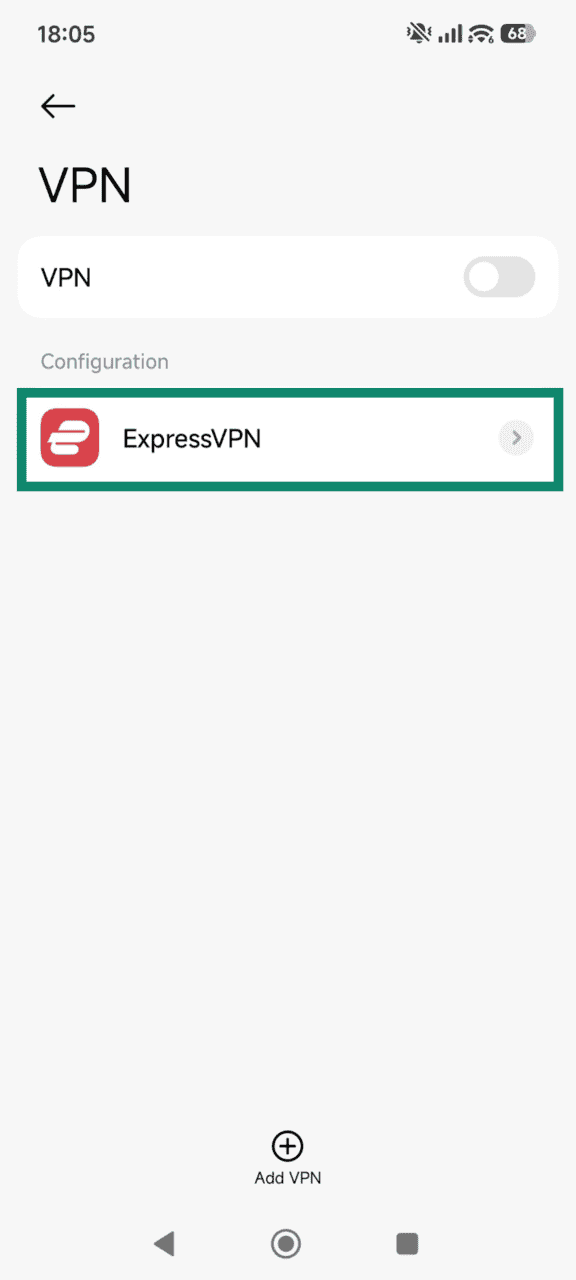
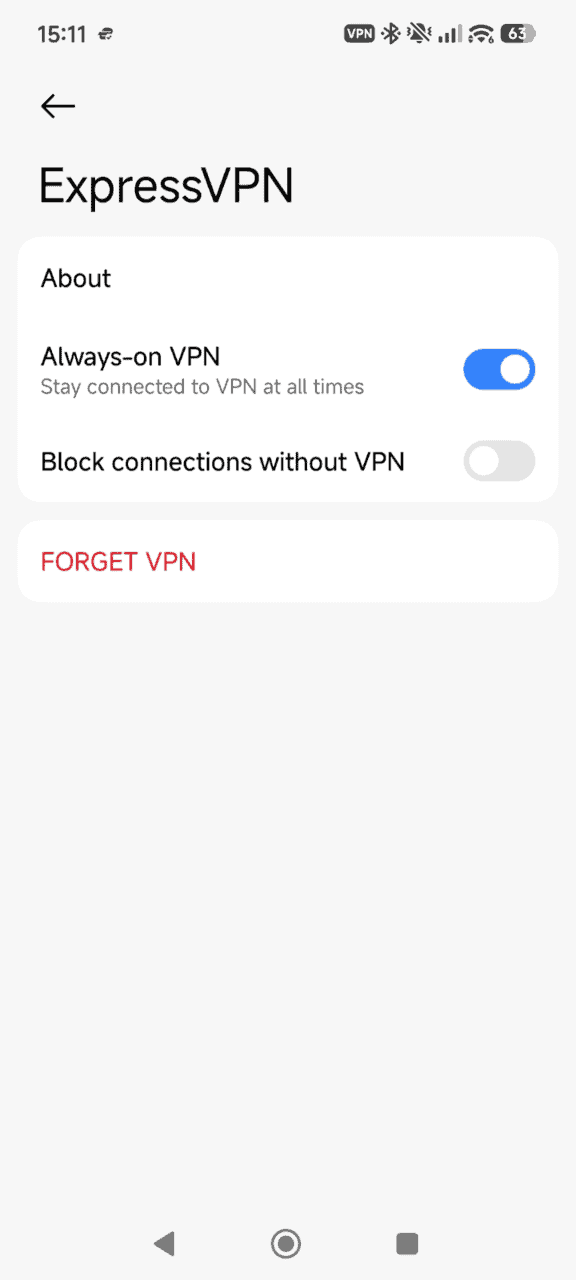
If Block connections without VPN is on, toggle it off. If you would like to keep using the Block connections without VPN settings, you will always have to connect to ExpressVPN to have internet access.
To learn more about how ExpressVPN’s internet kill switch works on Android, refer to this guide.
Change DNS settings
When the VPN is active, your phone uses ExpressVPN’s own encrypted Domain Name System (DNS) servers. Once you disconnect, your DNS settings should automatically return to their default state. If something interferes with this process, the phone might not be able to load the apps and sites you are trying to visit.
Modifying the DNS settings to use different DNS servers may help resolve the issue. To change your device’s DNS settings, follow the guide below. The exact steps may vary depending on your Android model and version.
- Open the Settings app and tap Wi-Fi.
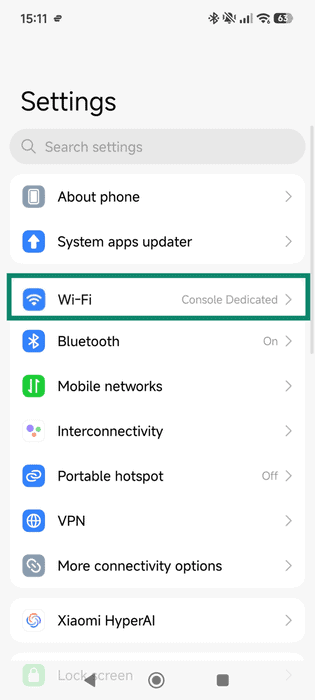
- Tap the arrow icon next to your current network.
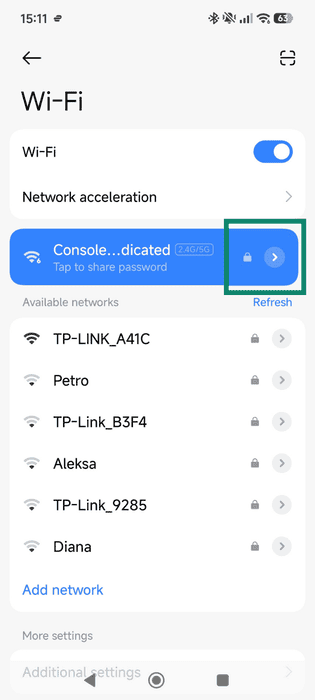
- Scroll down and tap the IP settings widget.
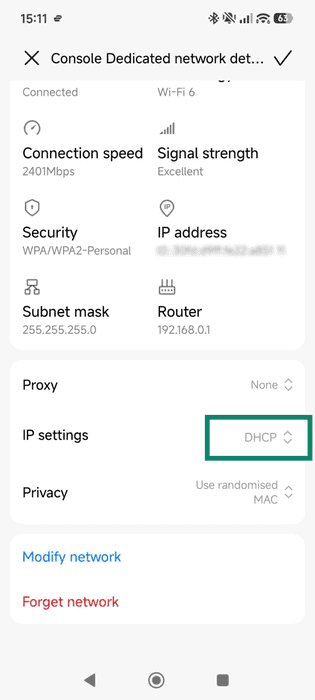
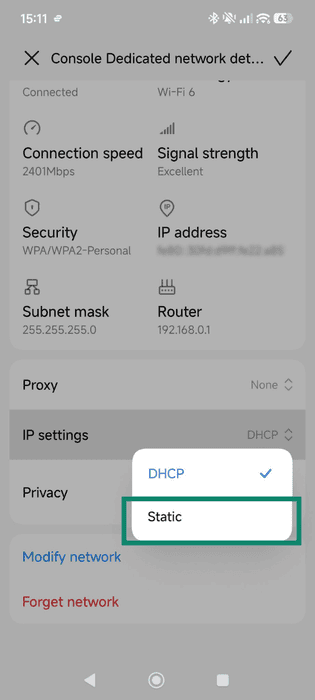
- Select Static.
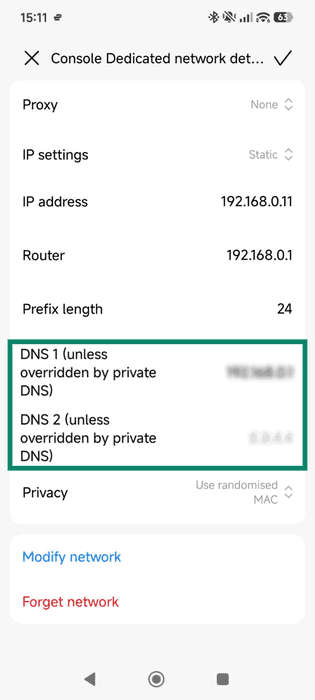
- Scroll down and change the DNS addresses in the following fields:
- DNS 1: Enter 208.67.222.222.
- DNS 2: Enter 208.67.220.220.
- Tap Save.
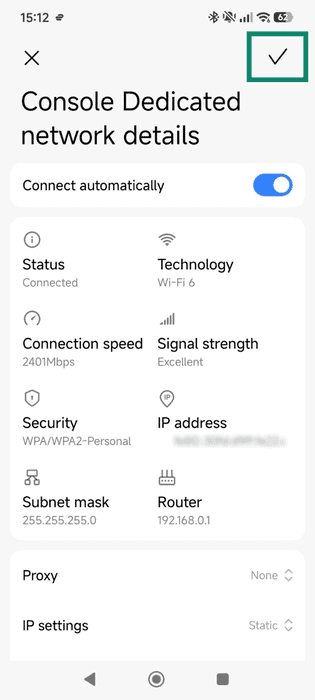
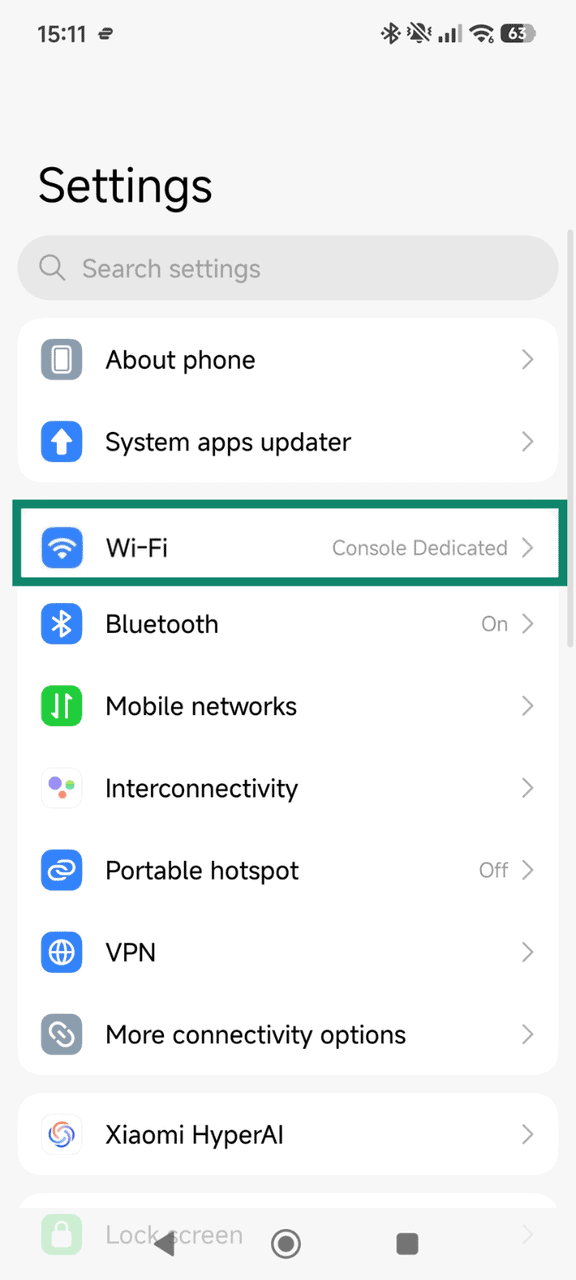
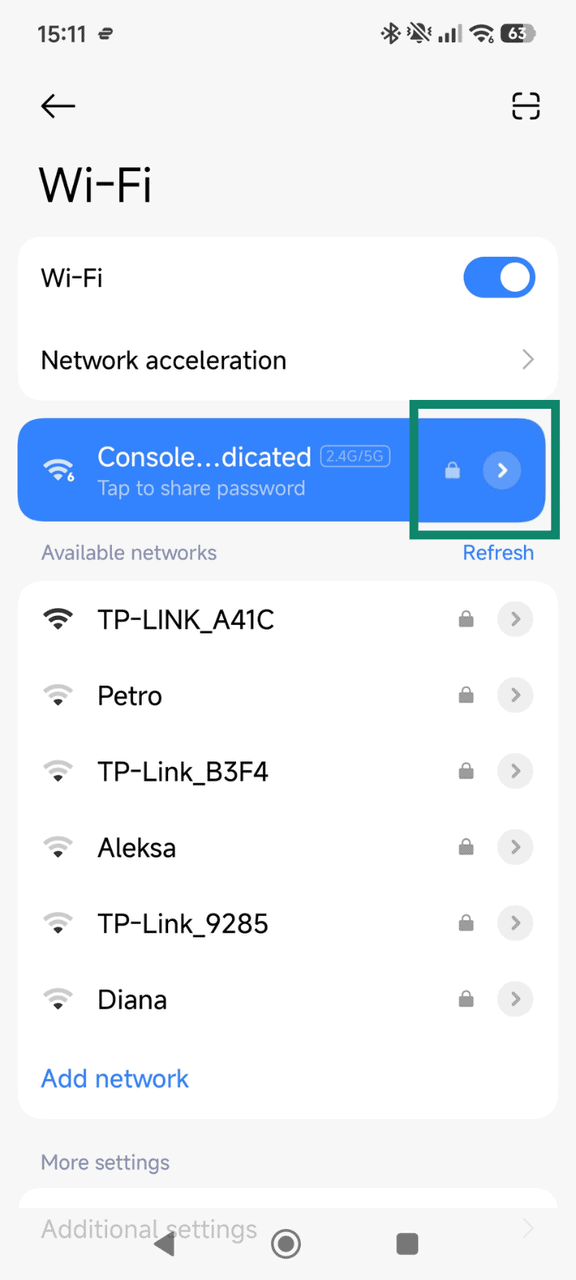
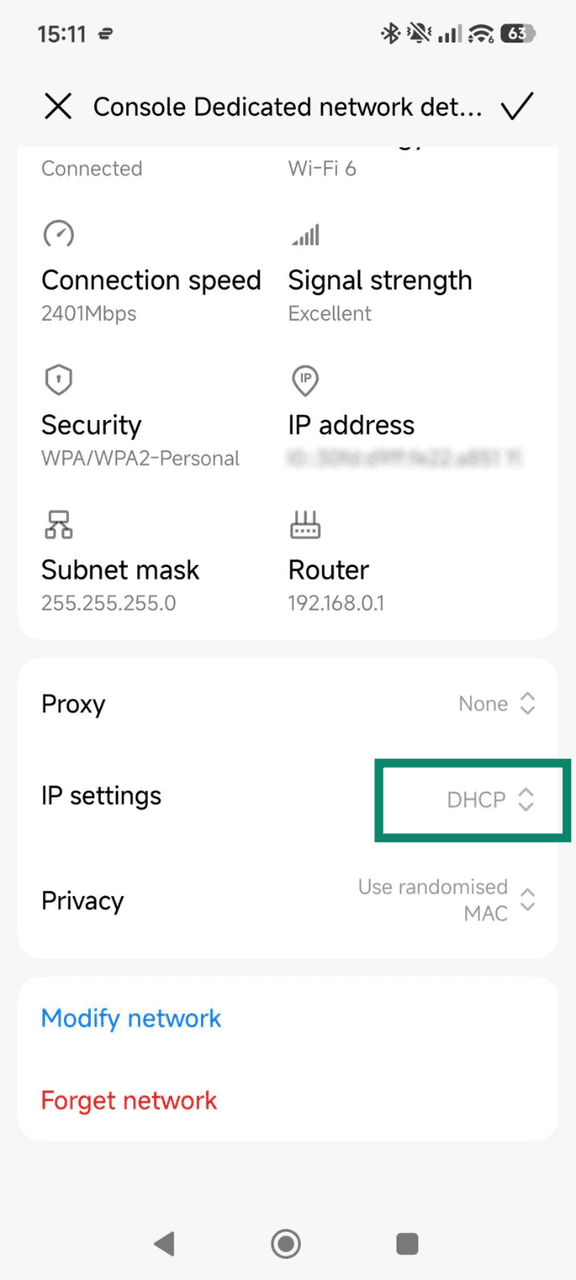
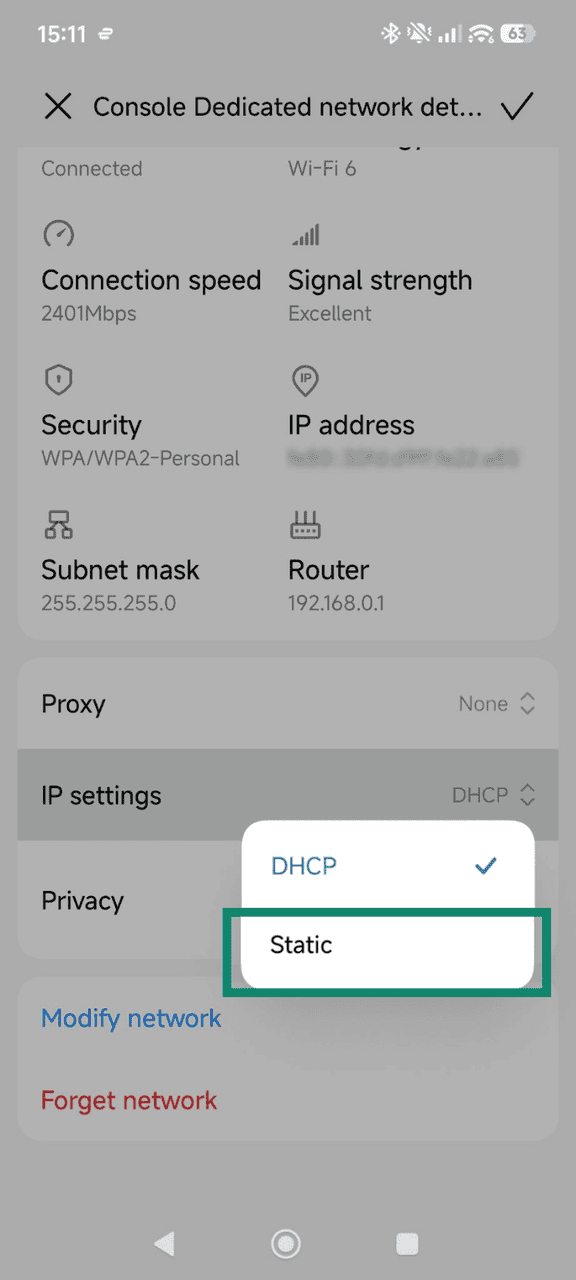
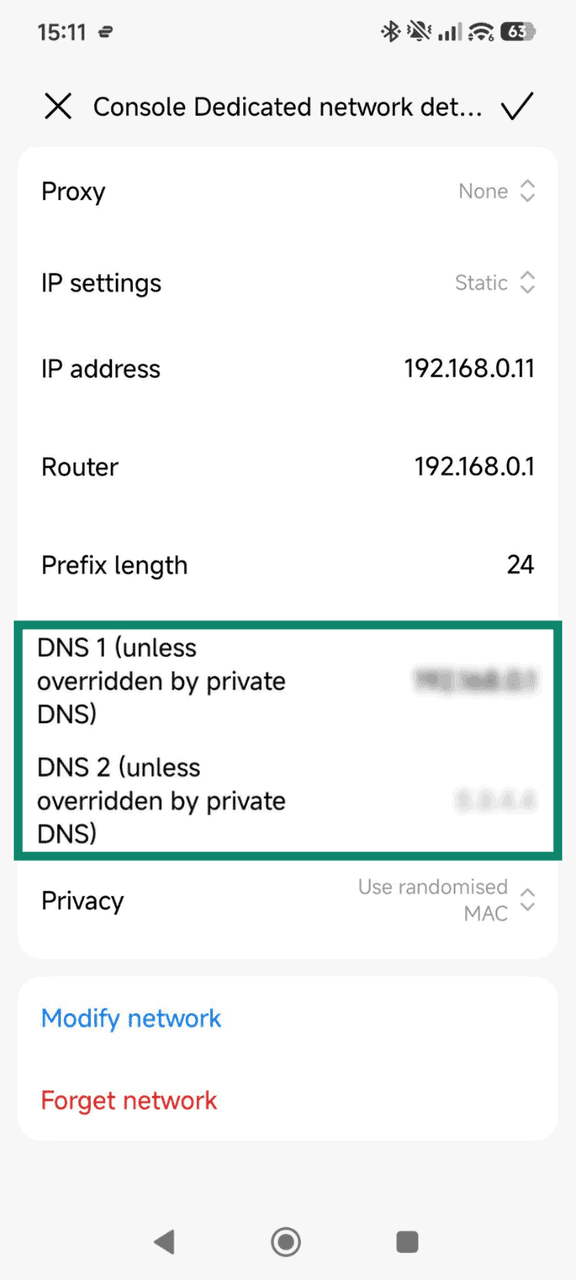
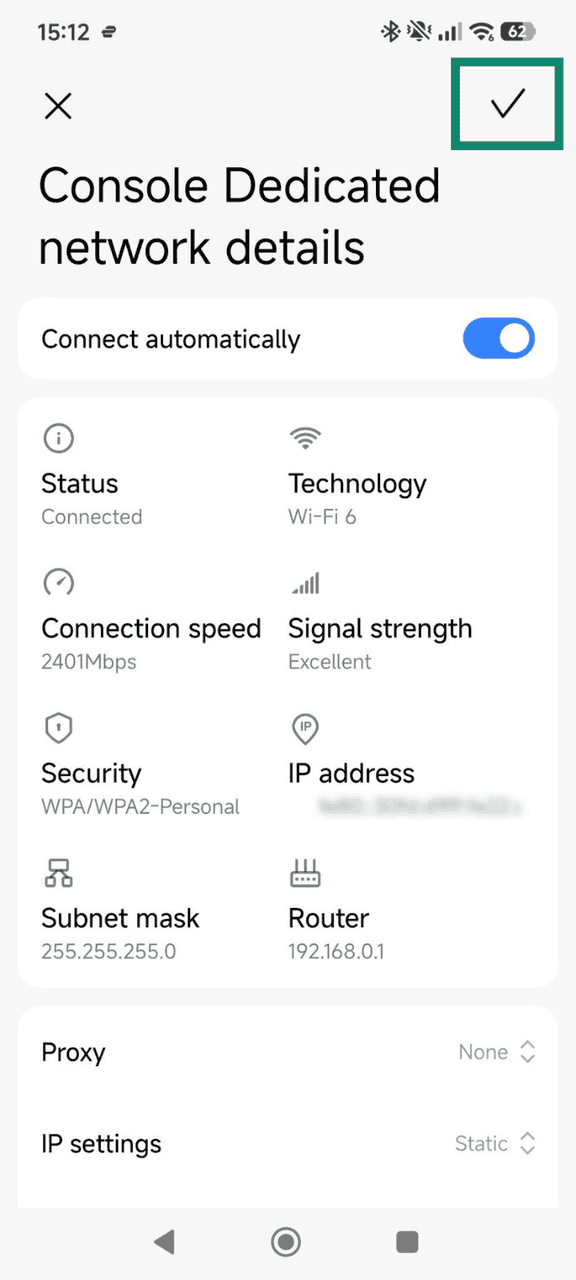
The changes should take effect immediately. If they do not, disconnect from the network, then reconnect to it.
- DNS 1: 156.154.70.1
- DNS 2: 156.154.71.1
Restart the phone
A fresh restart of your device may help resolve the issue. After the phone reboots, connect to ExpressVPN, then disconnect and see if you have internet access.
Downgrade the ExpressVPN app
Downgrading the app version can help rule out issues with the current ExpressVPN version. To do so, you need to manually download and install an older version of the ExpressVPN APK app for Android. Please contact the ExpressVPN Support Team to get the previous stable version of the APK app.
After you download the APK app, follow the steps in this guide to install it.
Need help? Contact the ExpressVPN Support Team for immediate assistance.