






This guide will show you how to fix an issue where Android Auto may show an error message while your Android device is connected to the ExpressVPN app for Android.
To fix the issue, you can use split tunneling to exclude Android Auto from the VPN connection:
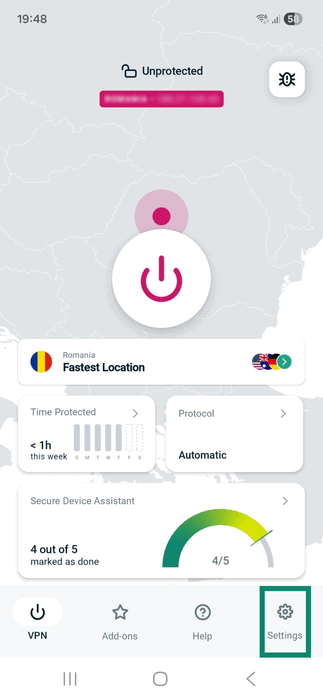
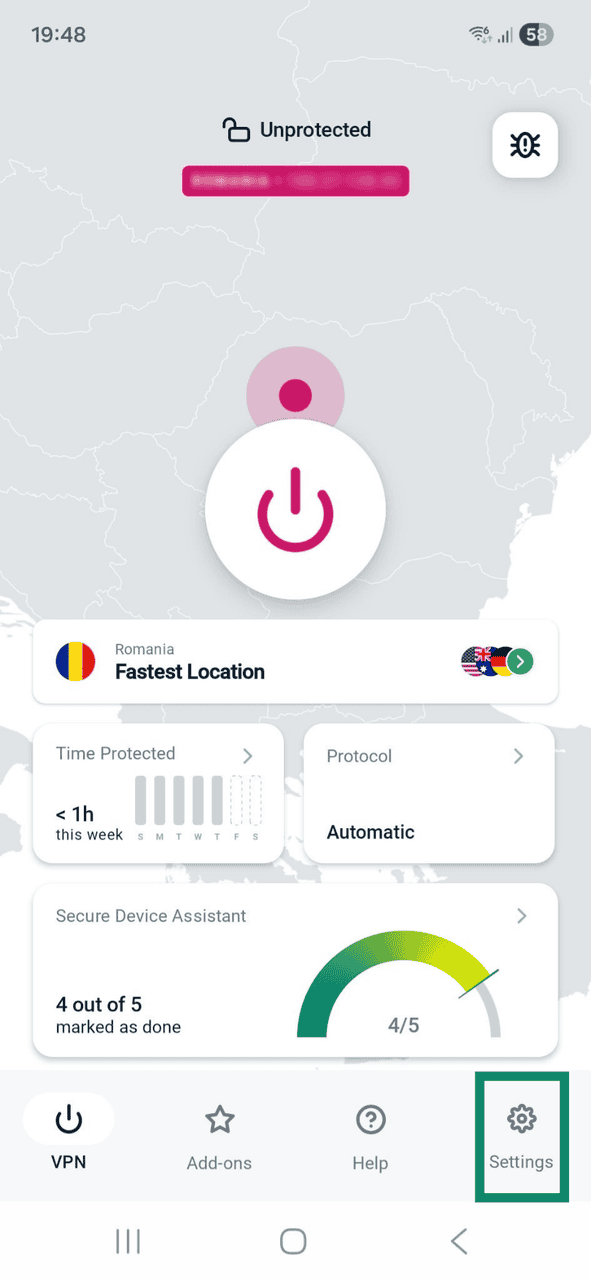
- Open the ExpressVPN Android app and tap Settings.

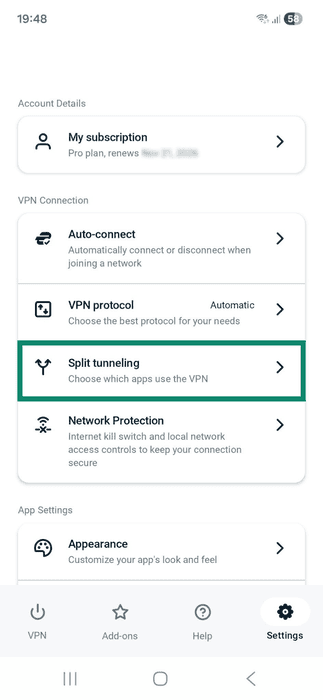
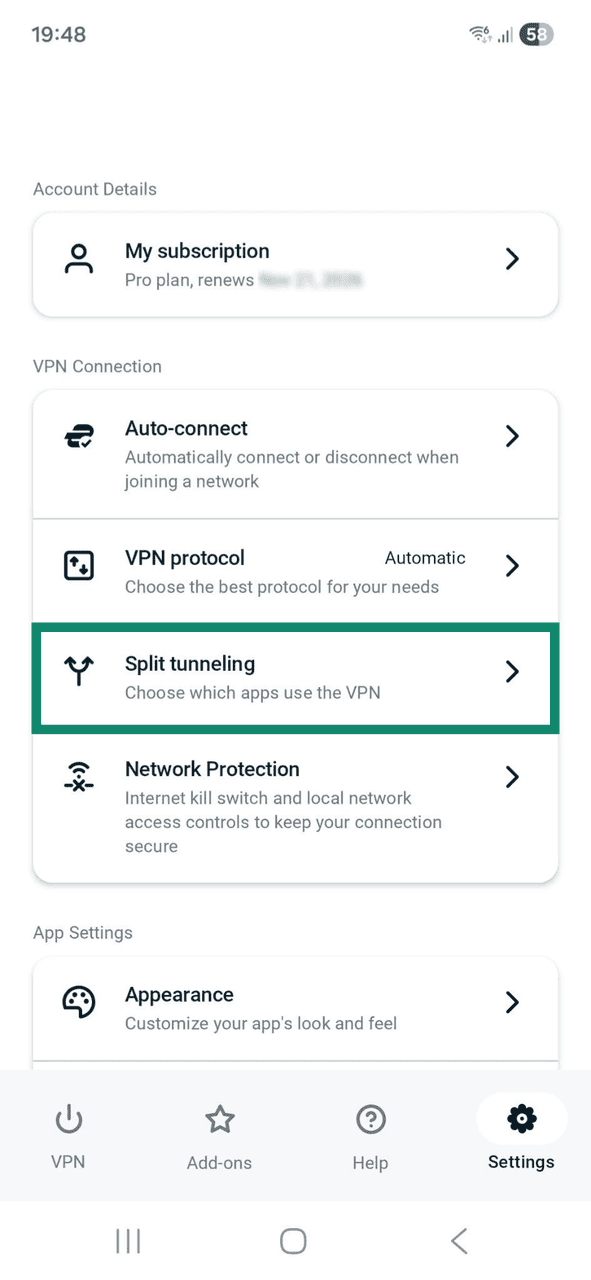
- Tap Split Tunneling.
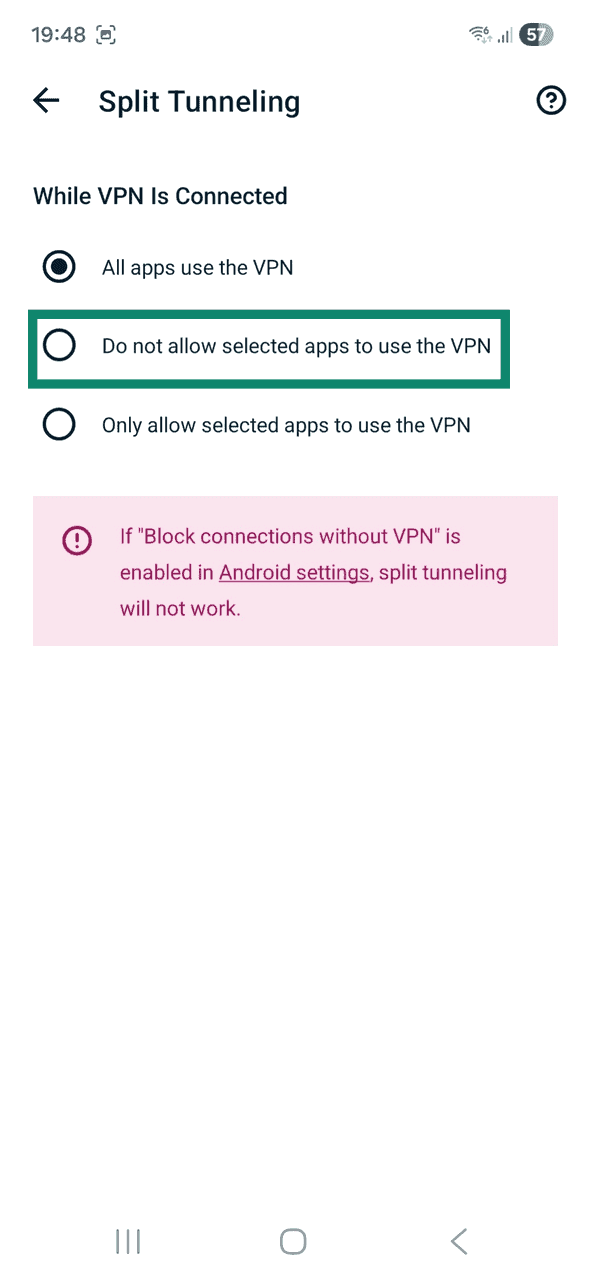
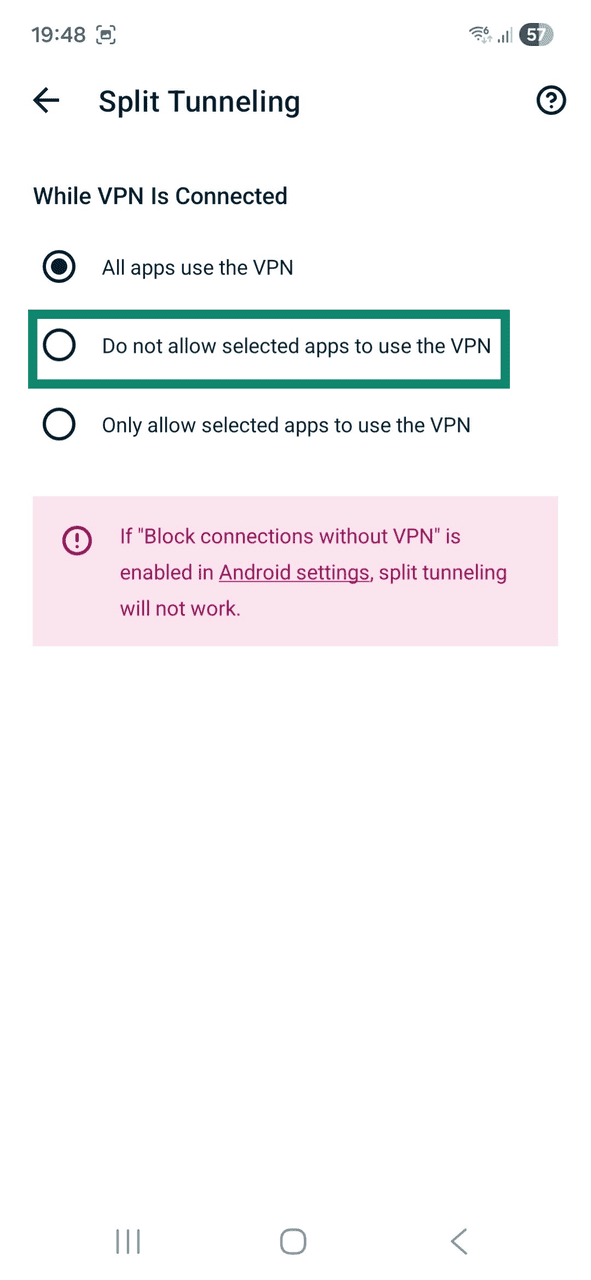
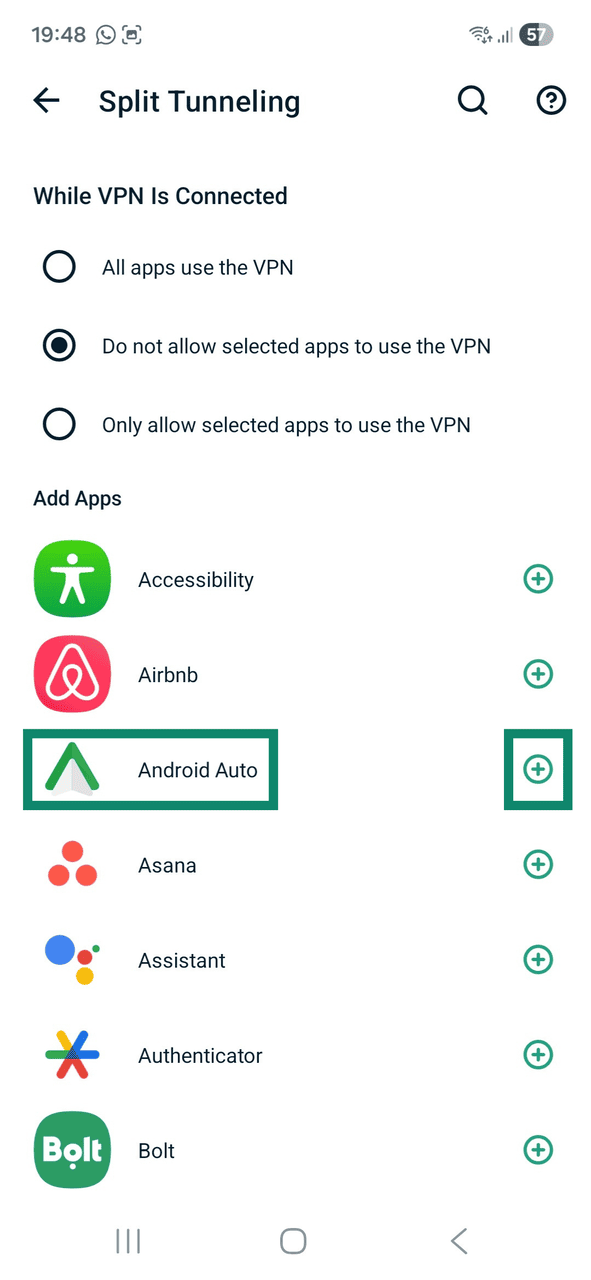
- Tap Do not allow selected apps to use the VPN.
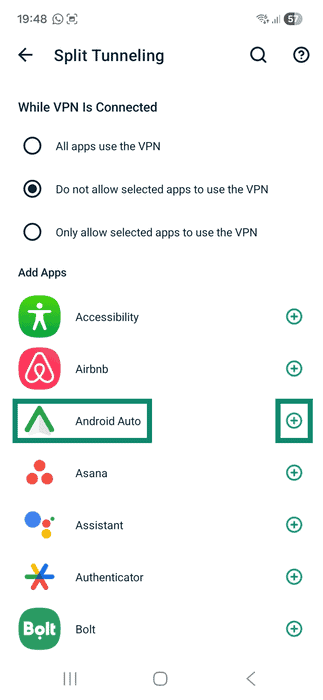
- Find Android Auto and tap the plus button next to it.
- Android Auto should appear in the Selected Apps section. The next time you connect to ExpressVPN, Android Auto will not use the VPN tunnel.
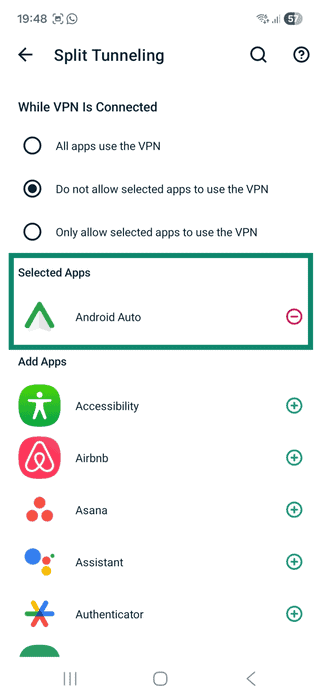
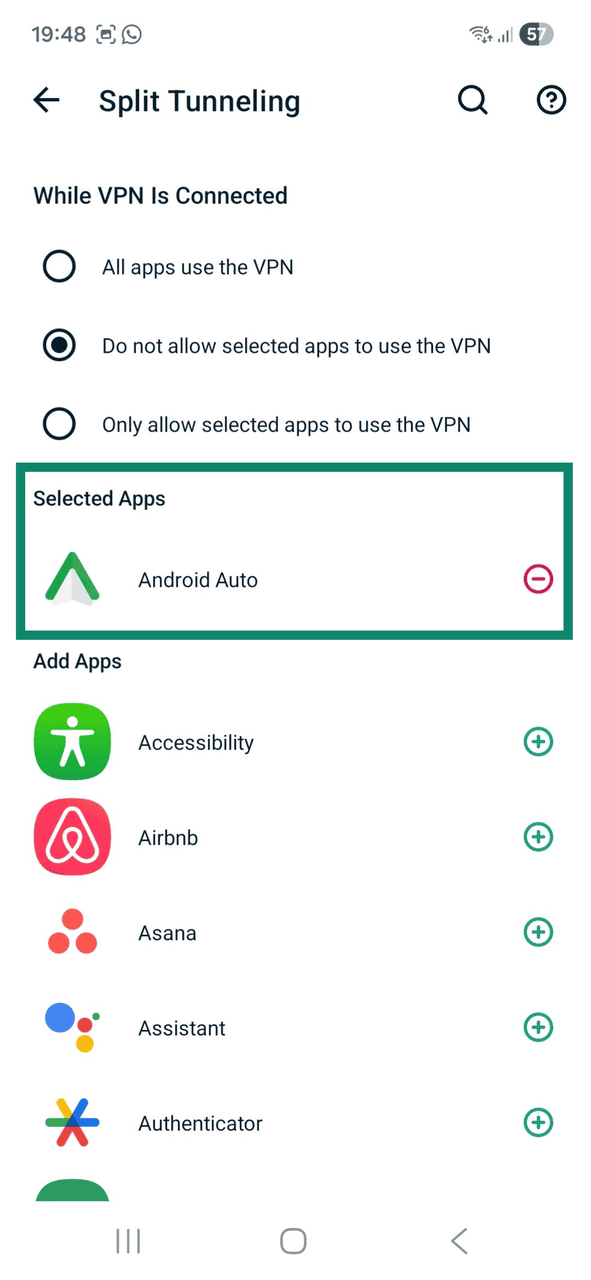
Note: Tapping the minus button next to Android Auto will remove it from the Selected Apps list, allowing Android Auto to use an active VPN connection.
If you are still seeing an error message when using Android Auto when connected to the VPN, contact the ExpressVPN Support Team for immediate assistance.