How to stop neighbors from using your Wi-Fi


The best way to stop neighbors from using your Wi-Fi is to protect it with a strong password, enable modern encryption, and regularly check for and remove unauthorized devices.
To make these steps easier, you can use ExpressKeys to generate and securely store strong Wi-Fi passwords and a router like Fortify to manage network security and connected devices.
How to tell if a neighbor is using your Wi-Fi
The most reliable way to tell if a neighbor is using your Wi-Fi is to review the list of devices connected to your router. This lets you spot unfamiliar devices accessing your network.
If you're using a Fortify router with ExpressVPN built-in, you can check connected devices by following these steps:
- Open a web browser and sign into your Fortify router's management interface.
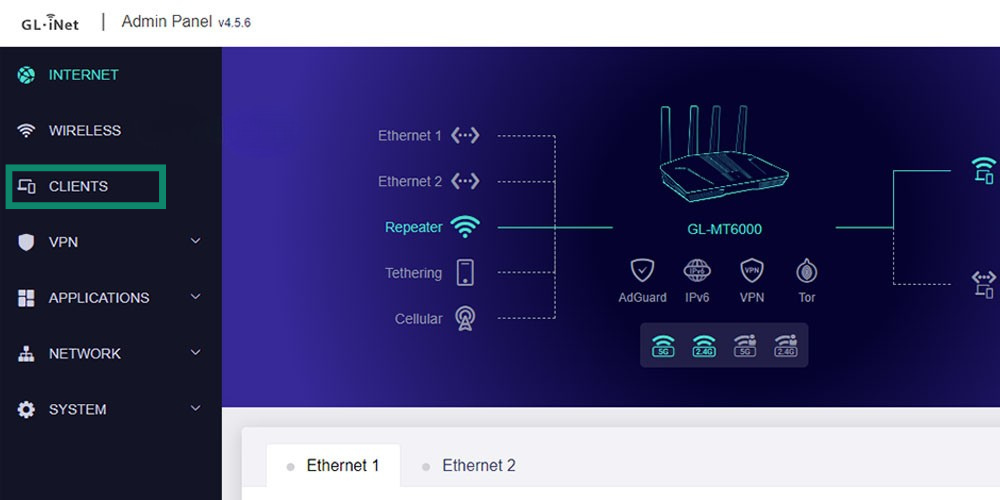
- Navigate to the Clients section to view the devices connected to your network.
- Review the device names, manufacturers, and MAC addresses, and compare them with devices you own or recognize (you can usually find a device's MAC address in its Wi-Fi or network settings). This can help you identify unfamiliar connections, especially when a device has a generic name.
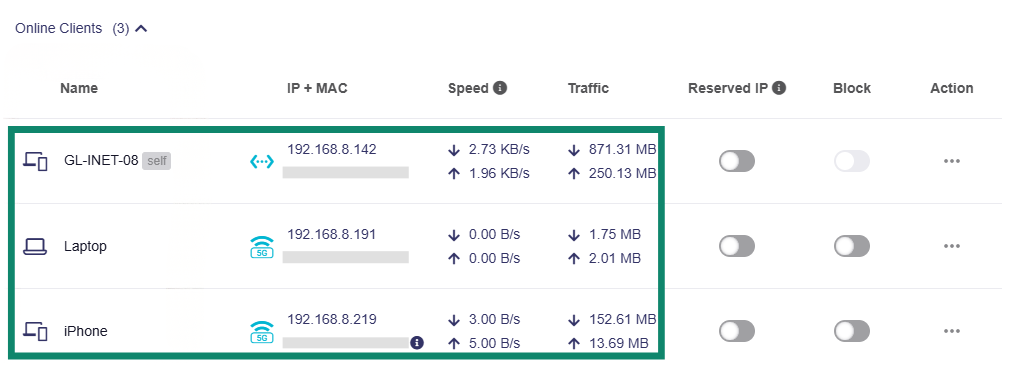
Keep in mind that seeing an unfamiliar device doesn’t necessarily mean it’s a neighbor's. It could be a smart home device, a guest's phone, or one of your own devices using a randomized MAC address. Fortify (and other routers) can show information about connected devices, but it can't tell you who owns or is using them.
How to stop neighbors from accessing your Wi-Fi
A few changes to your router settings can make it much harder for neighbors to access your Wi-Fi.
Use strong, unique Wi-Fi and router administrator passwords
A strong, unique Wi-Fi password is one of the simplest ways to prevent neighbors from accessing your network, but you should also protect your router's administrator account.
ExpressKeys can generate strong, random passwords for both and securely store them so you don't have to remember them.
To update your Wi-Fi and router administrator password in Fortify using ExpressKeys:
- Sign into Fortify's web management interface, go to Wireless, and click Main Network. Click the settings icon next to the 2.4GHz or 5GHz band.
- Select the Wi-Fi password field. If the ExpressKeys icon appears, use it to generate a strong password. Otherwise, open the ExpressKeys extension and generate one manually.
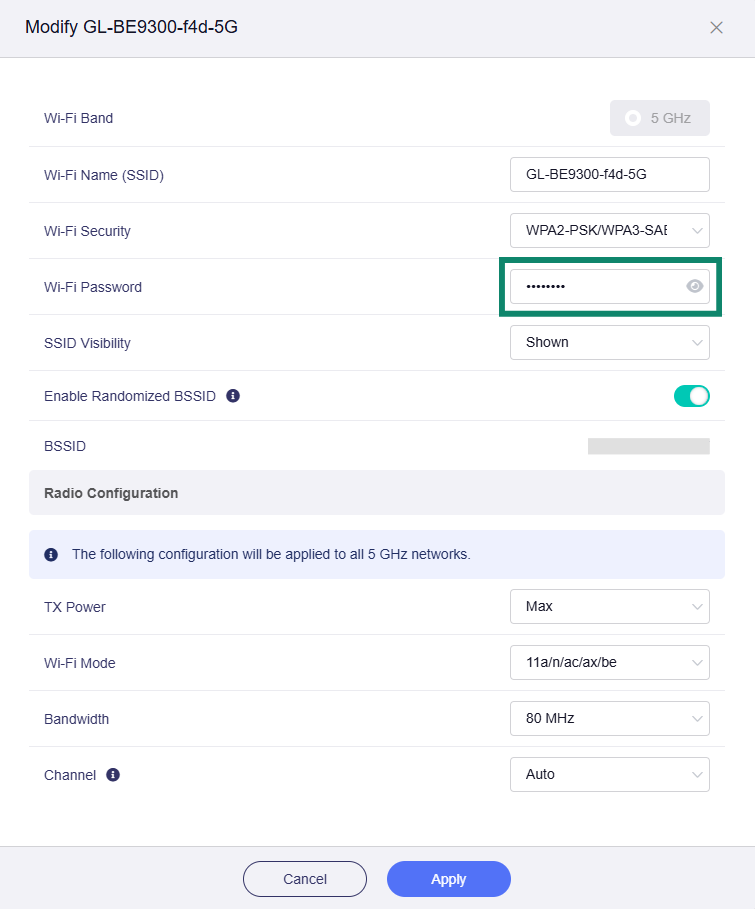
- Save the generated password in ExpressKeys.
- Apply the changes in Fortify and repeat for the other band if necessary. You'll need to reconnect your Wi-Fi devices using the new password.
- Next, change your router administrator password. Navigate to System, then click Admin Password to change the router administrator password. Select the password field and click the ExpressKeys icon to generate a new password.
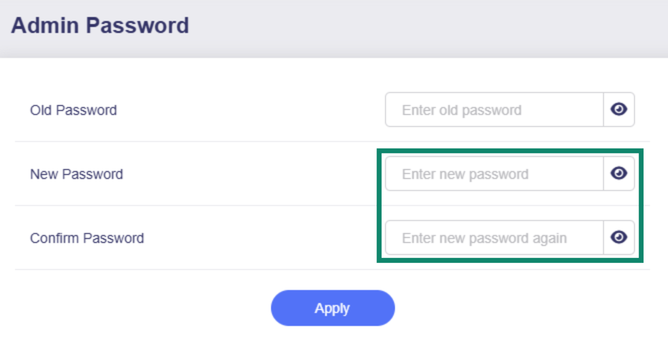
- Click Apply to save your new router administrator password. You'll need to use this password the next time you sign in to your router's management interface.
Enable WPA3 encryption
Enable WPA3-Personal to help prevent neighbors and other unauthorized users from accessing your Wi-Fi network. To do this on an ExpressVPN Fortify router:
- Sign into Fortify's management interface and open Wireless.
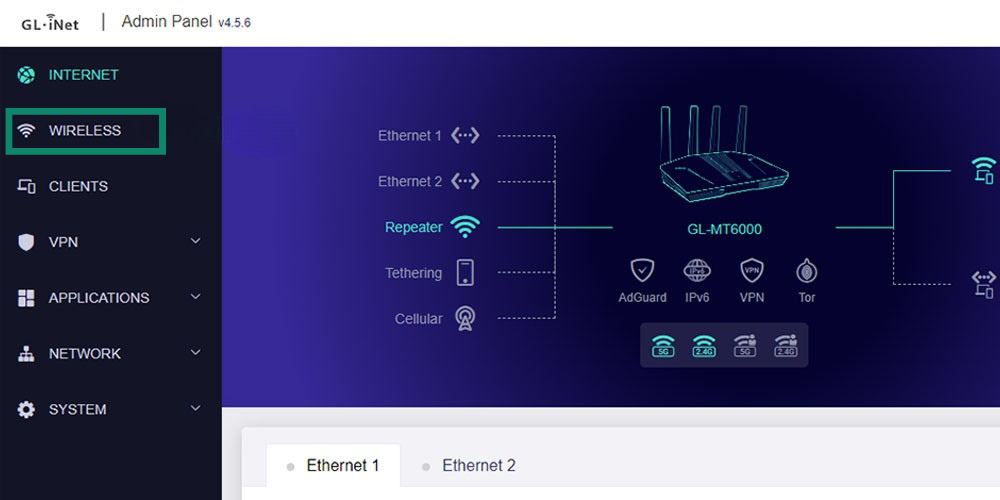
- Select Main Network, then choose your Wi-Fi band to access its settings. Find the Wi-Fi Security option and select WPA3-SAE or WPA2/WPA3 mixed mode if available.
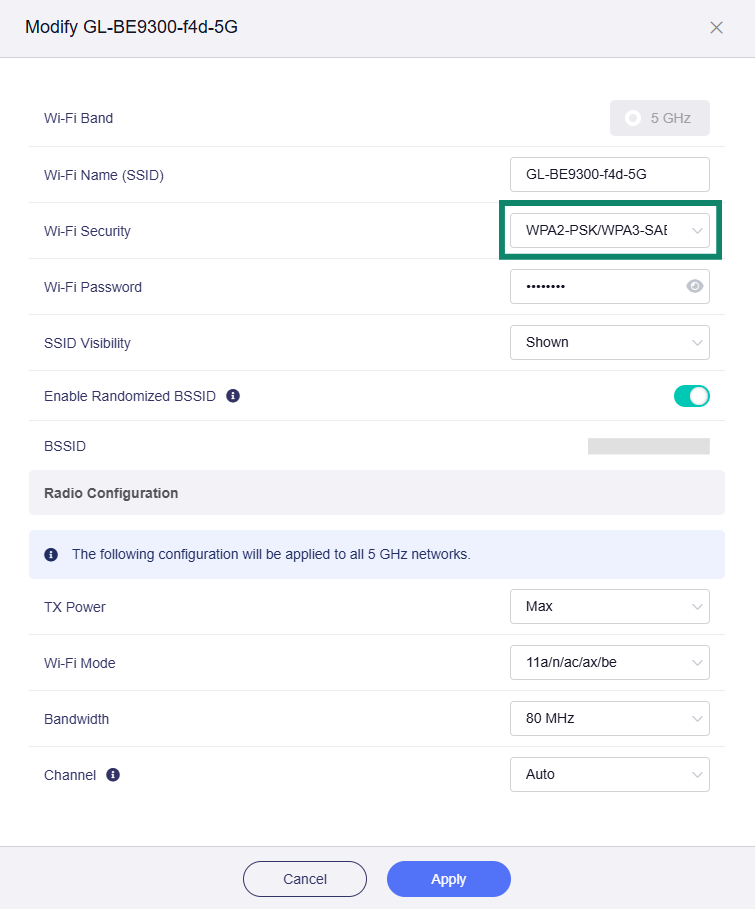
- Apply your changes and reconnect your devices if necessary.

Note: Some older devices may have trouble connecting with WPA3 enabled. WPA2/WPA3 mixed mode supports both standards. However, if you still experience connection issues, switch to WPA2-Personal for better compatibility.
How to block a neighbor from using your Wi-Fi
If you've spotted a neighbor's device actively using your Wi-Fi, you can block it through your router's settings.
To block an unwanted device using an ExpressVPN Fortify router:
- Sign into Fortify's management interface and open Clients.
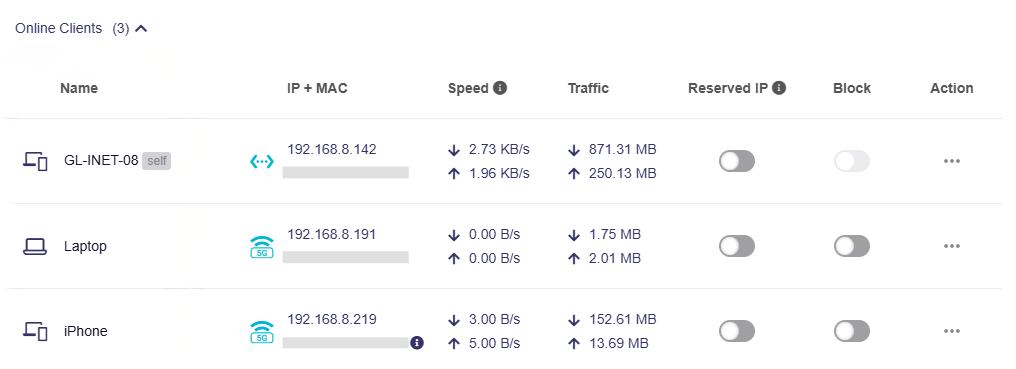
- Find your neighbor’s device in the list of connected clients. Check the name and MAC address to confirm it's the correct device.
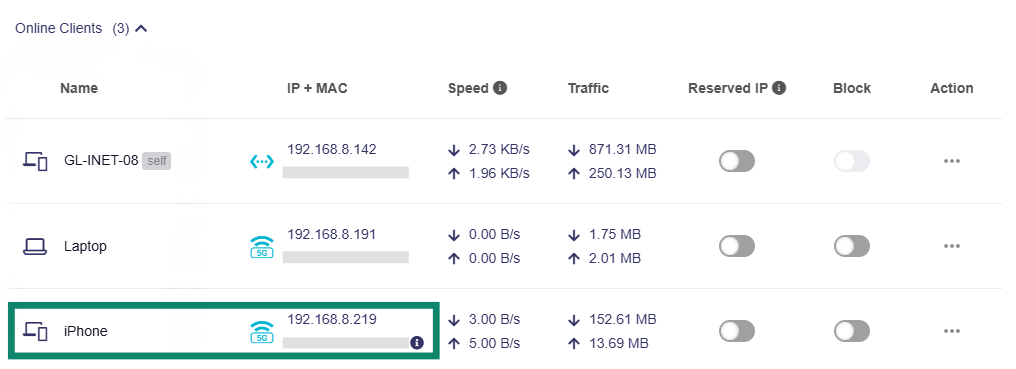
- In the Block column, find the toggle next to the device you want to block and turn it on.
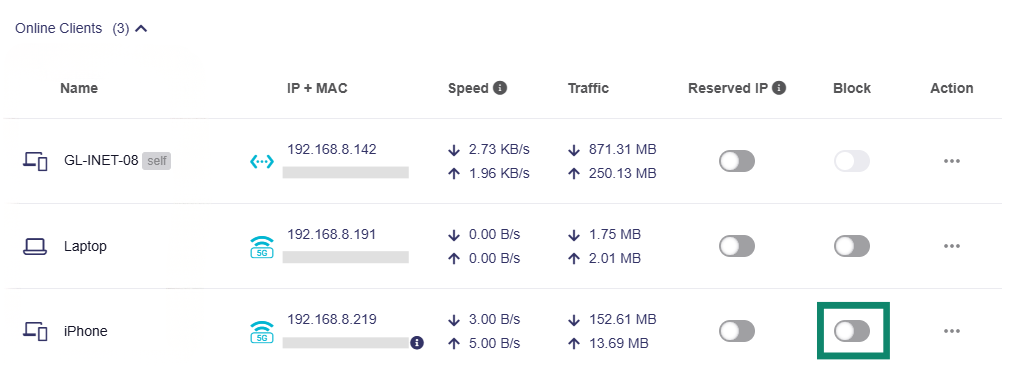
- Check the client list again to confirm that the device is no longer connected.
Other routers may offer similar features. However, blocking a device isn't enough if your neighbor already knows your Wi-Fi password. You also need to change your Wi-Fi password to prevent the neighbor from reconnecting.
Can ExpressVPN stop neighbors from using your Wi-Fi?
The ExpressVPN app can't stop neighbors from connecting to your Wi-Fi network. To prevent unwanted connections or remove unfamiliar devices, manage your router's security settings and access controls.
When you’re connected to ExpressVPN, it encrypts your internet traffic and masks your public IP address from the websites you visit. This helps protect your online privacy, but it doesn't control who can access your Wi-Fi.
The ExpressVPN Fortify router combines these two types of protection. It lets you manage connected devices with ease and secure your home Wi-Fi through its router settings while providing ExpressVPN's encryption for internet traffic routed through the VPN.
Want more control over who uses your Wi-Fi?
The ExpressVPN Fortify router lets you monitor connected devices, block unwanted connections, and manage your Wi-Fi security settings, while also providing VPN protection for internet traffic routed through ExpressVPN.
Secure your home Wi-Fi with Fortify
Get Fortify with 12 months of ExpressVPN Advanced included for eligible customers.
FAQ
How do I make my home Wi-Fi private?
ExpressKeys can help you generate and securely store your Wi-Fi password, while routers like ExpressVPN Fortify let you configure wireless security settings and manage connected devices.
If some devices don't support WPA3, try WPA2/WPA3 mixed mode for better compatibility.
Can I hide my Wi-Fi from neighbors?
Some routers, including Fortify, offer SSID visibility settings. However, using a strong Wi-Fi password and modern encryption is far more effective than hiding your network name.
Can you tell if a neighbor is using your Wi-Fi?
How often should I change my Wi-Fi password?
Use ExpressKeys to generate and securely store a strong replacement password, then apply it through your ExpressVPN Fortify router's wireless settings or another router's administration interface. Remember to reconnect your devices using the new password.