How to delete or deactivate Messenger in 2026



Messenger (formerly called Facebook Messenger) is deeply integrated with your Facebook account, and some data related to your account and app usage may still be stored by Meta even when you’re not actively using the app. In 2026, deleting or deactivating it involves more than uninstalling the app. Your choice affects your chats, account access, and what data remains stored on Meta’s servers.
This guide explains the difference between deactivating Messenger, permanently deleting the relevant account, and simply uninstalling the app. It also covers what may happen to your messages and how Messenger interacts with your Facebook account.
Should you delete, deactivate, or uninstall Messenger?
Before you take action, it helps to understand what each option does. Deletion is permanent once the deletion process is completed. Deactivation is reversible. Uninstalling only removes the app from the device.
Permanently delete your Messenger account
Deleting your Facebook account is the best way to permanently remove your access to Messenger. Meta delays deletion for a short period, and if you log back in during that window, the request may be canceled. Once deletion is completed, you won’t be able to use or reactivate Messenger.
Your Messenger account will no longer be active, and people won’t be able to interact with it as an active account. However, messages you already sent may still remain visible in other people’s chats. Meta also says copies of some material may remain in backup storage for a limited time.
If you need an alternative after deleting Messenger, consider choosing another chat app first.
Deactivate Messenger
Deactivating Messenger is a temporary option for stepping away without permanently deleting access. Some information, such as messages you previously sent, may remain visible to others. Deactivation is reversible, so you can reactivate Messenger later.
Messenger deactivation depends on your Facebook account state. If you’ve already deactivated Facebook, you can also deactivate Messenger. You can also choose to keep using Messenger after deactivating Facebook, and using Messenger in that case won’t reactivate your Facebook account.
If Facebook stays active, you may want to make your account private to limit who can find it and what they can see.
Uninstall the Messenger app
Uninstalling removes the app from your phone, but it doesn’t delete or deactivate your account. You can download the app again and sign in at any time. Uninstalling is useful if you just want to remove Messenger from your device without affecting your account or message history.
How to delete your Messenger account
If your Messenger account is connected to Facebook, deleting it usually means deleting your Facebook account through Accounts Center. Before proceeding, you can download a copy of your Messenger information using the Export Your Information tool in the Accounts Center.
Deleting Messenger on mobile
If your Messenger account is connected to Facebook, follow these steps to delete it by deleting the linked Facebook account. The steps are similar on Android and iPhone.
- Open the Facebook app on your phone.
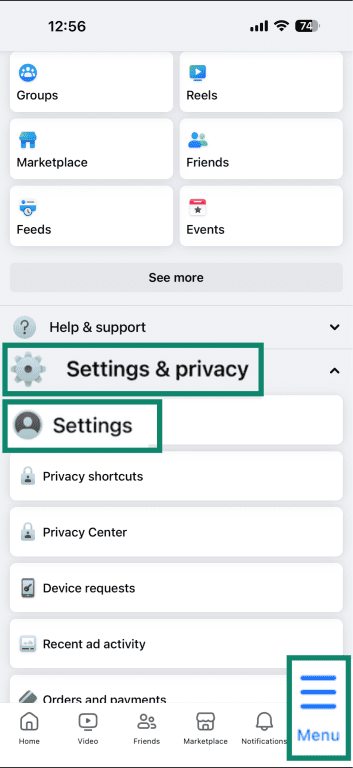
- Tap the menu icon. On iPhone, it appears at the bottom-right. On Android, it usually appears at the top-right.
- Navigate to Settings & privacy, and tap Settings from the drop-down menu.
- Tap Personal details, then Account ownership and control.
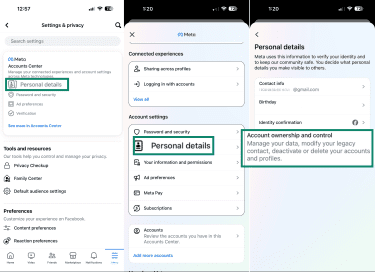
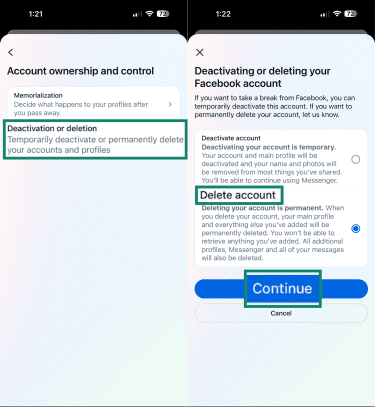
- Tap Deactivation or deletion, select your Facebook account, choose Delete account, and tap Continue.
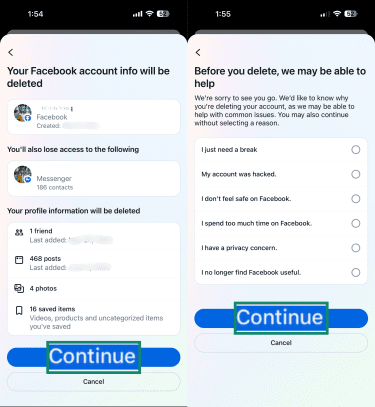
- Confirm your request by clicking Continue again, and select a reason for deleting your account. Click Continue one more time.
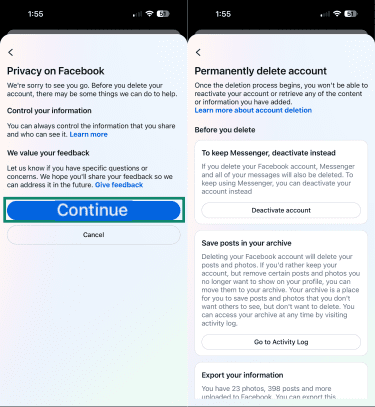
- Click Continue again to open the Permanently delete account page. Scroll down and click Continue.
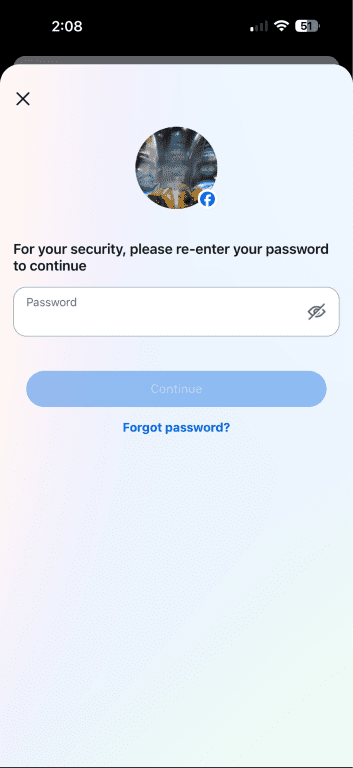
- Enter your password to confirm deletion.
Deleting Messenger without an active Facebook account
If Messenger is being used through a deactivated Facebook account or a Deactivated Except Messenger Account (DEMA), you can delete it directly in the Messenger app instead.
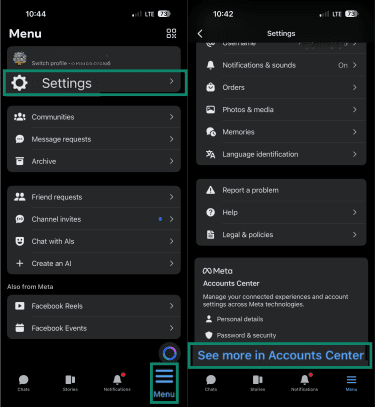
- From Chats, tap Menu in the top-left.
- Tap Settings, then scroll down and tap See more in Accounts Center.
- Go to Personal details > Account ownership and control > Deactivation or deletion, and follow the prompts.
Deleting Messenger on desktop
Deleting Messenger on desktop follows a similar process to that of mobile. If your Messenger account is linked to Facebook, you’ll need to delete the linked Facebook account through Accounts Center.
- Open Facebook in a browser and log into your account.
- Click your profile icon in the top-right, then click Settings & privacy, then Settings.
- Click Personal details.
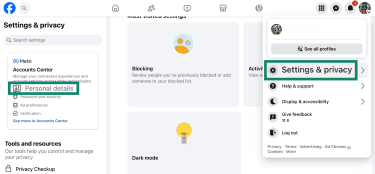
- Click Personal details again, then Account ownership and control.
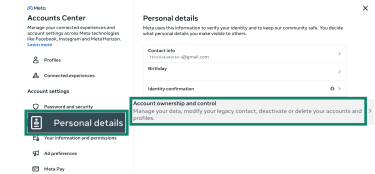
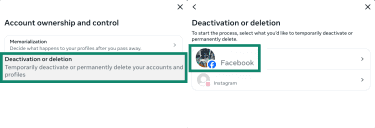
- Click Deactivation or deletion, then select your Facebook account from the list of connected Meta accounts.
- Select Delete account and click Continue.
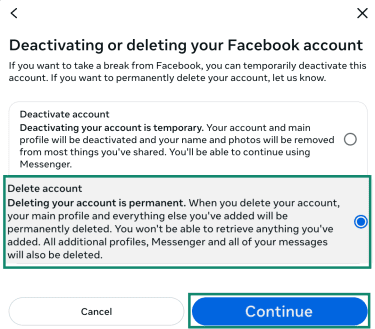
- Click Continue again. Then, choose a reason for deleting your account and confirm deletion by clicking Continue.
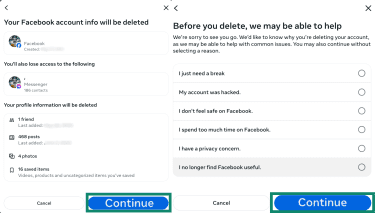
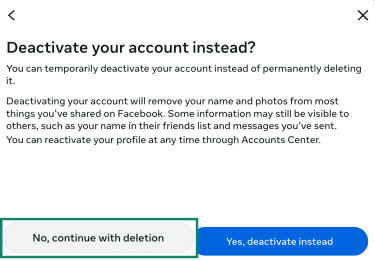
- Facebook will offer the option to deactivate your account rather than delete it. Click No, continue with deletion to delete your account.
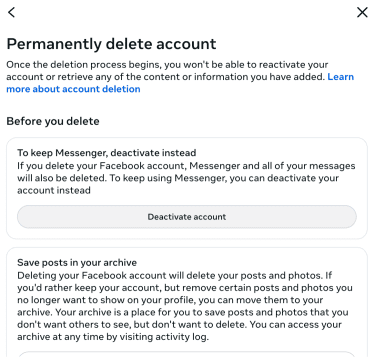
- Scroll down and click Continue.
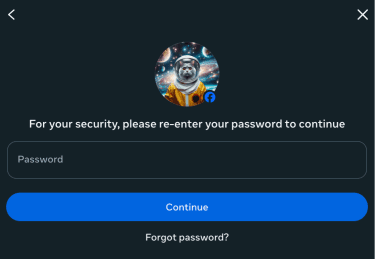
- Enter your Facebook account password and click Continue to complete the deletion process.
Also read: Uncover the truth about whether Facebook is listening to you.
How to deactivate your Messenger account
To deactivate Messenger, your Facebook account must already be deactivated. If it isn’t, the flow will first direct you to deactivate Facebook.
Deactivating Messenger on mobile
- Follow steps 1 to 5 of the Messenger account deletion process. But instead of selecting Delete account, choose Deactivate account, and click Continue.
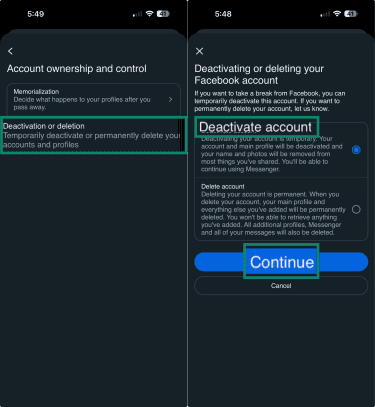
- Enter your password and click Continue again.
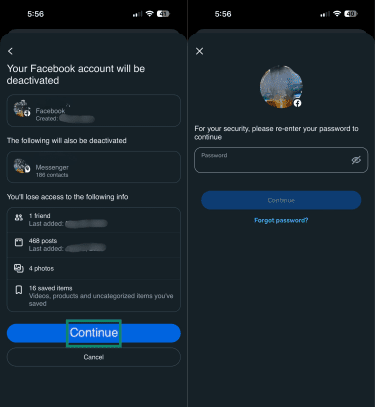
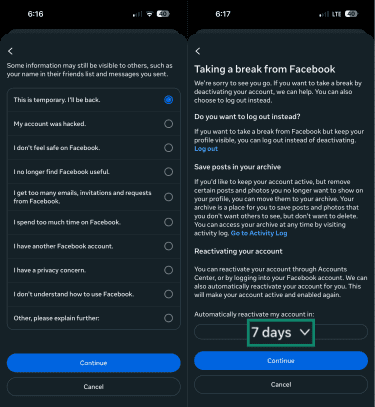
- Provide a reason for deactivating your account and tap Continue. On the next screen, you can choose to automatically reactivate my account for 1 to 7 days, or Not at all. Confirm your choice and tap Continue.
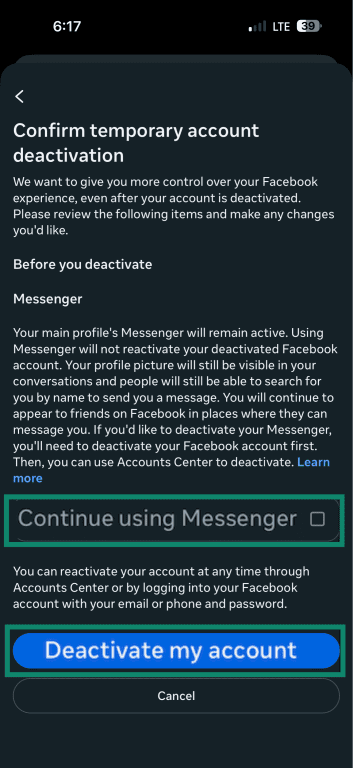
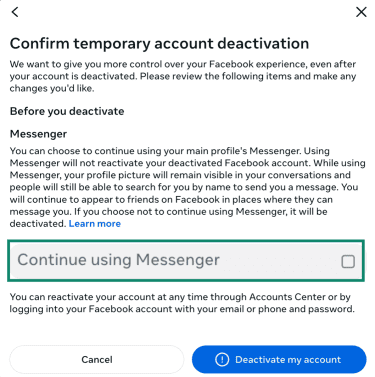
- Ensure Continue using Messenger is unchecked if you want to deactivate your Messenger account along with your Facebook account. Then, click Deactivate my account.
Deactivating Messenger on desktop
- Follow the first four steps of the desktop account deletion process.
- Select Deactivate account and click Continue.
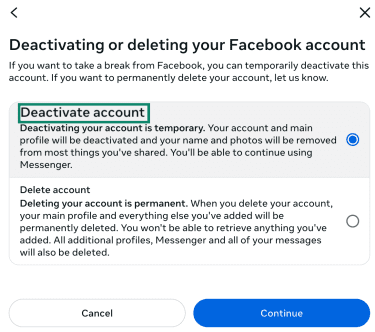
- Click Continue. Next, enter your account credentials and click Continue again.
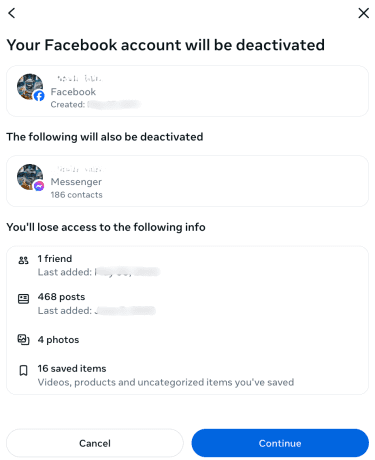
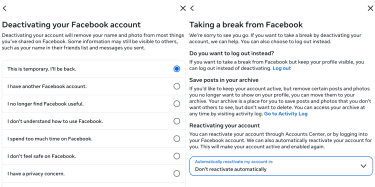
- Provide a reason for deactivating the account and click Continue. Next, choose an option under Automatically reactivate my account in, then click Continue again.
- Keep Continue using Messenger unchecked. This will deactivate Messenger along with your Facebook account. Then, click Deactivate my account.
Should you download your data before deleting Messenger?
Before you delete your account, consider downloading your Messenger data. It helps preserve a copy of your conversations and attachments before they're deleted.
What data does Messenger collect?
As a Meta product, Messenger collects various types of data, including:
- Signup details, such as your email address and phone number.
- Accounts, Pages, and businesses you interact with.
- Usage activity and interactions with Messenger features.
- Contacts you upload or import.
- Device details, such as hardware and software versions, language settings, and cookies.
- Information about your activity on websites or apps that use Meta’s tools or services.
You can review and control some of the data that businesses and organizations share with Meta using the activity off Meta technologies.
For personal messages and calls, Messenger uses end-to-end encryption by default, meaning the content of those chats is intended to be readable only by the people in the conversation.
Meta says the content of personal messages with friends and family is not used for ads. However, this does not apply to every Messenger interaction: chats with businesses, some Marketplace chats, reported messages, and messages involving Meta AI can be handled differently.
Also read: How to delete yourself from the internet.
How to download your Messenger data
You can use the Export your information tool to request and download a copy of your Messenger information.
Downloading Messenger data on mobile
- Open the Messenger app on your phone.
- Go to Menu > Settings, then scroll down and tap See more in Accounts Center.
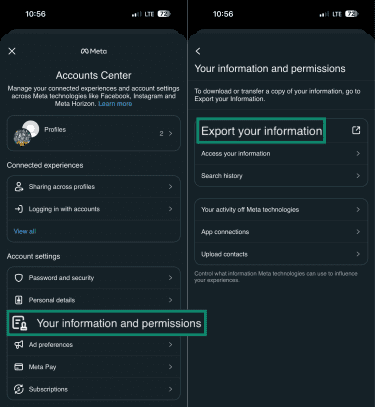
- Under Your information and permissions, tap Export your information.
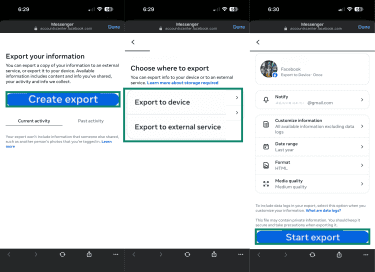
- Tap Create export. Choose between Export to device or Export to external service. Select the date range and data format for the data you want to export, then tap Start export.
Downloading Messenger data on desktop
The process of exporting Messenger data on desktop is similar to mobile.
- Open Facebook in a browser.
- Click the profile icon in the top-right.
- Go to Settings & privacy > Settings.
- Click See more in Accounts Center in the left sidebar.
- Go to Your information and permissions > Export your information.
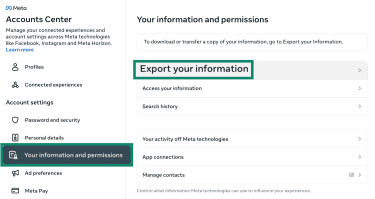
Then follow the prompts to choose where to send the export and what date range and format you want to use.
Troubleshooting Messenger deletion issues
Why can’t I log into Messenger?
If you can’t log into Messenger, the cause usually ties back to your Facebook account status, how the app is set up, or Meta’s login security requirements. Here’s what can block access:
- No active Facebook account: A Facebook account is generally required to set up Messenger. If you permanently delete your Facebook account, you can’t keep using Messenger through that account. However, Meta also says Messenger can continue to work after Facebook deactivation in some cases.
- Account disabled or suspended: If Facebook disables your account, you may see a disabled or suspended message when you try to log in. If you think the decision was a mistake, you may be able to appeal it. If you suspect someone has taken over your account, follow Facebook's recovery process.
- Deactivation and Messenger settings: If you left the Continue using Messenger option unchecked when deactivating your Facebook account, your Messenger account is also deactivated.
- Outdated app or connection issue: Install the latest version of the Messenger app. You can also try logging in from a mobile browser, and you should make sure your internet connection is stable.
- Two-factor authentication (2FA) required: If you’ve enabled 2FA and can’t access your usual device or phone number, use your recovery options, such as backup login codes or Meta’s account recovery steps.
Why can't I deactivate Messenger?
You must deactivate your Facebook account before you can see the option to deactivate Messenger. Otherwise, the Messenger deactivation option won’t be available. One way to do this is to leave Continue using Messenger unchecked when deactivating your Facebook account, which also deactivates Messenger.
FAQ: Common questions about deleting and deactivating Messenger
Can I delete Messenger without deleting Facebook?
Can I deactivate Messenger without deactivating Facebook?
Can I use Messenger if I deactivate my Facebook account?
If I uninstall Messenger, will my account be deleted?
Is deactivating Messenger the same as deleting it?
Is Messenger linked to your Facebook account?
Take the first step to protect yourself online. Try ExpressVPN risk-free.
Get ExpressVPN