How much internet speed do I need? Expert guide


When you’re choosing an internet plan, it can be difficult to know exactly how much speed you actually need. Too little can lead to lagging, buffering, or dropped calls, while paying for more than you use adds unnecessary cost.
This guide breaks down how to estimate what your home needs so you don’t end up spending more than you need to. We’ll also look into factors that affect your internet speed and what you can do to keep your connection running smoothly.
Common internet speed terms explained
Understanding a few key terms makes it easier to interpret your internet plan or speed-test results. Metrics like Mbps, download and upload speed, latency, and bandwidth each describe a different aspect of how quickly data moves between your device and the internet
What does Mbps mean?
Megabits per second (Mbps) is the standard unit for measuring internet speed. It reflects how many millions of bits (tiny units of digital information) your internet connection can transfer each second.
Internet plans typically advertise their total capacity (bandwidth) in Mbps, and this number represents the maximum rate your connection can achieve under ideal conditions.
Megabits (Mb) and megabytes (MB) are often confused. File sizes are measured in megabytes, and 1 byte equals 8 bits, which means 1MB is the same as 8Mb. This conversion helps you estimate download times. For example, a 100MB file on a 100Mbps connection would take roughly eight seconds to download in optimal conditions.
Upload speed vs. download speed explained
Your internet connection sends and receives data, and these two directions are measured separately as download speed and upload speed.
- Download speed: How fast your device receives information from the internet, like loading webpages, streaming video, or downloading files.
- Upload speed: How fast your device sends information to the internet, for tasks like sending emails, sharing photos or videos, or uploading files to the cloud.
Latency, ping, and bandwidth: What’s the difference?
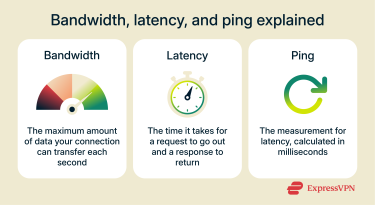 Internet speed isn’t only about how fast you can download or upload. Three other factors shape how smooth your connection feels: bandwidth, latency, and ping.
- Bandwidth refers to your connection’s capacity, or the amount of data it can handle at once. Higher bandwidth means that several devices can stream, download, or browse at the same time without slowing each other down. For a closer look at how this capacity differs from actual speed, see our detailed guide to throughput vs. bandwidth.
- Latency is the delay between sending a request from your device and getting a response. Lower latency means quicker response times and less lag. It’s what makes a video call feel natural or a game respond instantly.
- Ping measures latency in milliseconds (ms), and the term is often used interchangeably with latency. A ping below 50ms is considered optimal, while 50–100ms is the maximum recommended for smooth streaming and gaming. A ping over 100ms may cause delays or lag in real-time apps.
How to calculate the internet speed you really need
The key to calculating the right speed is to base it on your online activities and the number of devices using the connection at the same time. Different tasks demand different amounts of bandwidth, and each active device adds to the total load. Once you know what’s happening on your network, you can estimate the speed your household actually needs.
Recommended internet speeds by use case
Streaming
The speed you need for streaming depends mainly on the video quality you watch. The higher the resolution, the faster the download speed you’ll need to avoid buffering.
Here’s what typically works best for each level of video quality:
| Streaming quality | Resolution | Recommended download speed |
| Standard definition (SD) | 480p | 3–5Mbps |
| High definition (HD) | 720p or 1080p | 5–10Mbps |
| Ultra HD (4K) | 2160p | 25Mbps or higher |
Online gaming
Online gaming depends less on raw download speed and more on how responsive your connection is. Smooth gameplay needs low latency, which is the time it takes for you to send data and receive a response. For example, the delay between you hitting RT and the game registering your shot.
As mentioned, latency is measured in “ping,” and ping is measured in ms. If your ping rises above 100ms, you’ll likely notice lag or delayed responses during matches.
Here’s a simple guide to what most players need:
| Type of gaming | Ideal ping |
| Casual or single player | Under 100ms |
| Regular online multiplayer | Under 50ms |
| Competitive or streaming play | Under 20ms |
For more in-depth information, read our detailed guide to internet speed for gaming.
Working from home: Zoom, сloud apps, file uploads
Remote work usually depends on a stable connection that can handle two-way communication. Video calls, shared documents, and cloud backups all rely heavily on upload speed, not just download speed.
Here’s a guide to the recommended minimum speeds for different remote working tasks:
| Activity | Recommended minimum download speed | Recommended minimum upload speed |
| Email, browsing, document editing | 5Mbps | 1Mbps |
| HD video meetings (Zoom, Teams) | 10–25Mbps | 3–5Mbps |
| Large file uploads or backups | 25–50Mbps | 10Mbps or higher |
Smart homes and IoT devices: What you need to know
Smart homes can have multiple Internet of Things (IoT) devices, such as smart TVs, speakers, lights, thermostats, and security cameras, all sharing the same network. While most IoT devices use minimal bandwidth, many running simultaneously can still strain a network or router that’s near capacity.
The key difference is between devices that continuously transmit data and those that only need to transmit intermittently. For example, a security camera or smart TV usually requires fast and steady speeds for frequent streaming. A smart temperature sensor, on the other hand, might work well on a much slower connection.
Here are typical bandwidth needs for common smart home devices:
| Device type | Typical activity | Recommended speed (per device) |
| Smart cameras or video doorbells | Live video or continuous recording | 2–5Mbps for 1080p, up to 25Mbps for 4K |
| Smart TVs and displays | Streaming or casting | 5–25Mbps, depending on resolution |
| Smart speakers | Occasional audio streaming or voice commands | 0.5Mbps or less |
How many users and devices are on your network?
The number of people online at the same time has a direct impact on how much speed your household needs. The total demand depends on what each person is doing and how many devices are active simultaneously.
A useful way to estimate the demand is to multiply the typical Mbps required for an activity by the number of devices doing it at once.
For example, consider a family household with:
- Three people streaming 4K video: 25Mbps each, 75Mbps total.
- Two people working remotely with video calls: 10Mbps each, 20Mbps total.
- Four smartphones or tablets online for light browsing: 5Mbps each, 20Mbps total.
- A smart doorbell streaming lower-quality video: Approximately 2 Mbps.
Adding up the total devices and their activities, this household would require approximately 117Mbps in total.
VPN usage and internet speed needs
A virtual private network (VPN) protects your online privacy by encrypting your traffic and routing it through a private server to hide your real IP address. However, this process adds extra steps to your data’s journey and can slightly reduce your connection speed.
The impact is usually small and can be minimized by choosing a fast VPN provider. However, if your internet is already slow, even a small drop in speed can make a difference. It’s best to leave some extra margin in your plan if your household frequently uses a VPN on one or more devices.
On the other hand, there are some cases where a VPN can actually improve your internet speeds. Some internet service providers (ISPs) throttle certain types of traffic, especially high-bandwidth activities like streaming, often during peak hours. Because a VPN encrypts your data and hides the sites or apps you use, it can prevent your ISP from throttling specific activities, helping you maintain faster speeds.
Learn more in our guide to bandwidth and VPNs.
Other factors that affect your internet speed
The speed advertised by your provider is only a baseline. When estimating how much speed your household needs, it helps to consider the following factors:
- Connection type: Fiber, cable, DSL, fixed wireless, and satellite each perform differently. Some, like cable, may experience slowdowns during peak hours. Choosing a plan with extra bandwidth can help maintain consistent performance during busy times.
- Wi-Fi vs. wired: Wi-Fi signals can weaken over distance or through walls. Households that rely mostly on Wi-Fi may benefit from slightly higher bandwidth to compensate for potential signal loss. Wired Ethernet connections are typically faster.
- Network congestion: Internet speeds can decrease when many users in your area are online at the same time. If you notice frequent slowdowns during busy hours, selecting a higher-speed tier can help offset shared-network congestion.
- Equipment quality: Older routers, modems, or devices can limit performance. To fully avail of higher-speed plans, you might need to upgrade your hardware
Types of internet connections and how they compare
The way your home connects to the internet plays a big role in how fast and reliable your service feels. Different types of internet connections use different technologies, and that can affect everything from speed and consistency to how easily your network handles multiple devices at once.
Fiber vs. cable vs. DSL vs. satellite
| Connection type | How it works | Typical speeds | Latency and stability |
| Fiber optic | Sends data using pulses of light through thin glass fibers; connections are usually dedicated, not shared | 1,000Mbps to 10Gbps | Low latency and very stable |
| Cable | Uses coaxial cables that often share bandwidth among households in the same area | 500Mbps to 2,000Mbps | Moderate latency; performance can dip during peak hours |
| DSL | Transmits data over copper telephone lines; speed decreases with distance from the provider | 1Mbps to 100Mbps | Higher latency; stability varies |
| Satellite | Sends data via satellites orbiting the Earth, adding significant travel distance | 25Mbps to 150Mbps | High latency; weather can affect performance |
Choosing the right internet plan
Choosing an internet plan comes down to three things: the speed your household needs, your budget, and what’s available in your area. Once you know your requirements, here are some tips for finding a suitable plan.
Comparing internet service providers (ISPs)
Instead of focusing only on advertised speeds, look at how each provider performs locally and what their long-term pricing and policies are like.
- Local reliability: Service quality can vary by neighborhood, so it can be helpful to check local reviews for signs of frequent outages or slowdowns.
- Service terms: Some providers raise prices after a promotional period. Check how long the introductory rate lasts, what the regular price will be after this period, and whether there are added hidden fees for equipment or installation.
- Deals and bundles: Compare discounts, contract options, and bundles with TV or mobile services. These can change the long-term cost even if speeds look similar.
- Customer support: Customer feedback online can show how responsive a provider is when something goes wrong.
What to know about data caps
Some internet plans limit how much data you can use each month, commonly referred to as data caps. Most caps are around 1 terabyte (TB) per month, which is usually enough for typical households. To put this in perspective, 1TB equals 1,000 gigabytes (GB).
While 1TB can cover everyday activities, heavy usage such as frequent 4K streaming, downloading large games or files, and multiple connected devices can quickly consume that limit. For example:
- Streaming 4K video can use approximately 7–10GB per hour.
- Downloading a large game can easily exceed 50GB per title.
If you exceed the limit, many ISPs charge extra fees or may throttle (slow down) your connection until the next billing cycle. Some providers offer unlimited data plans or unlimited-data add-ons, which are worth considering if you regularly approach or exceed your monthly cap.
When should you upgrade your plan?
It’s usually time to upgrade if your current plan can’t keep up with your household’s daily use. Signs include frequent buffering during video streaming, slow or interrupted video calls, or noticeable slowdowns when several people are online at the same time.
However, slow internet isn’t always due to an insufficient internet plan. Before upgrading, it’s a good idea to diagnose and troubleshoot potential issues that may be slowing your connection down. If troubleshooting doesn’t improve your experience, upgrading to a higher-speed plan may be necessary.
Are ultra-high-speed internet plans worth the cost?
Ultra-high-speed plans typically start at 1 gigabit per second (Gbps), and they offer far more capacity than standard tiers. But is gigabit internet worth it?
As with any internet plan, it depends entirely on how your household uses the connection. If you share your home with multiple people who all want to stream, game, download large files, or video conference in HD, the additional speed can be worth paying for.
However, it’s also important to consider whether your home network can actually support these speeds. Many routers use older Wi-Fi standards like Wi-Fi 5, which generally max out at a few hundred Mbps. Similarly, older Ethernet ports may not support gigabit speeds. Without gigabit-capable Ethernet ports or a wireless network running Wi-Fi 6 or newer, paying for ultra-high-speed internet won’t deliver its full benefits.
How to test and improve your internet speed
A good first step to understanding your connection is checking how fast it’s running right now. A quick speed test shows your current performance.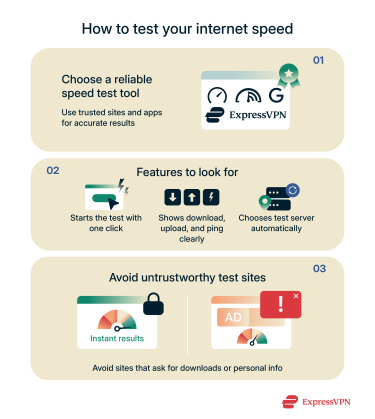
Best free internet speed test tools
Free speed tests give you a quick way to see how your connection is performing. Most measure your download and upload speeds along with basic responsiveness. Using more than one tool can help you spot variations caused by differences in the location of the test server.
- Speedtest by Ookla: Measures download and upload speed, ping, and (in some cases) jitter; lets you choose different test servers.
- Google speed test: Type “speed test” in Google to use it. This tool displays your download speed, upload speed, and latency.
- Fast.com: Focuses on download speed by default, with optional upload and latency metrics in the advanced view.
- Federal Communications Commission (FCC) Mobile Speed Test: An app that measures download and upload speed, latency, packet loss, and trends over time through repeated tests.
ExpressVPN subscribers can also use the speed test built into the Android, iOS, Windows, and macOS apps. Learn more in our detailed guide on how to test your internet speed.
What speed should you actually be getting?
Speed test results rarely match the exact numbers advertised on your plan, especially over Wi-Fi. Wireless connections lose efficiency through distance and interference, so real-world speeds are often 20–40% lower than the maximum speed listed by your ISP. A wired Ethernet connection should come closer to the contracted speed.
If your results consistently fall far below that range, whether on Wi-Fi or Ethernet, there may be a bigger issue. Large gaps can point to router limitations, local network congestion, or problems with your provider’s infrastructure. If speeds remain significantly lower across multiple tests at different times of day, it’s worth contacting your ISP to rule out faults or misconfigurations.
How often should you run speed tests?
If you’re happy with your internet performance, you don’t necessarily need to test your speeds very often. However, running speed tests occasionally can help ensure your connection stays reliable and meets your needs.
Here are some good times to check your speeds:
- Once a month: To make sure your plan stays consistent.
- During peak hours: To check whether your connection is affected by local congestion.
- To verify a suspected issue: If you notice buffering, lag, or pages loading unusually slowly. Run two or three tests a few minutes apart to check whether the slowdown is temporary, caused by congestion, or sustained.
- After major changes: It’s a good idea to test your speeds if you’ve changed provider, upgraded your plan, replaced your modem or router, or added a device that consumes a lot of bandwidth.
Troubleshooting slow internet: Tips that work
If you’re dealing with slow internet, factors like interference, router placement, or outdated hardware can all play a role. Fortunately, some slowdowns can be fixed at home without advanced tools. A few quick checks can rule out simple issues before you contact your provider.
Move your router
Place the router in a central, elevated, and open spot to reduce physical obstacles and help the signal travel more evenly. Avoid keeping the router in basements, tight corners, behind thick walls, or near large appliances, since they can weaken performance.
Use Ethernet instead of Wi-Fi
A wired Ethernet connection provides a more stable and consistent signal than Wi-Fi. It avoids wireless interference and is the most reliable way to get closer to the full speed your plan can support.
Limit unused devices
Smart devices, TVs, consoles, and apps running in the background can use bandwidth without you noticing. Disconnect or pause what you’re not using.
Restart your router and modem
Rebooting clears temporary issues and resets your connection with the ISP. It’s often all that’s needed to fix sudden slowdowns.
Upgrade your equipment and firmware
Older routers and modems can limit the speed and stability of your entire network. If your hardware is several years old, it may not be designed to support current standards or the speeds included in your plan. Likewise, outdated firmware can cause instability and reduce speed.
Upgrading to a modern router can improve coverage, handle more devices at once, and maintain more consistent performance.
Try a mesh network system
Larger homes and multi-level spaces often need more than a single router to maintain even Wi-Fi coverage. Mesh systems use multiple access points to create one unified network, reducing dead zones and keeping speeds more consistent from room to room. They’re a practical option when coverage problems stem from the size or layout of the home.
FAQ: Common questions about internet speed
Is 300Mbps fast enough for a family?
It depends on how your household uses the internet. That said, 300Mbps is typically enough for most families, even with multiple devices streaming, gaming, or joining video calls at the same time.
What’s a good Wi-Fi speed for an apartment?
Most apartments don’t require extremely high speeds; the right plan simply depends on how many people live there and whether you stream in HD or 4K. Smaller spaces often benefit from fewer Wi-Fi obstacles, so mid-range speeds are usually more than enough.
Do I need 500Mbps for gaming?
Not usually. Online gaming depends more on low latency than high download speed, and most games run well on 25–100Mbps. A 500Mbps plan only becomes useful if multiple people game, stream, or download large files simultaneously.
Why is my internet slower than advertised?
Your speed can drop due to Wi-Fi interference, outdated equipment, or network congestion. Even fast plans slow down if your router or devices can’t support the speeds you’re paying for.
What’s the best speed for Zoom and video calls?
Most HD video calls run well on 10–25Mbps download and 3–5Mbps upload. If several people on the same home network are joining meetings at the same time, you may need 50–100Mbps to keep video and audio stable.
Can too many devices slow down my connection?
Yes, each active device uses part of your bandwidth. A busy network can slow down streaming, gaming, or video calls. Smart TVs, cameras, and multiple streams can add up quickly on smaller plans.
Take the first step to protect yourself online. Try ExpressVPN risk-free.
Get ExpressVPN